> ## Documentation Index
> Fetch the complete documentation index at: https://docs.cove.trade/llms.txt
> Use this file to discover all available pages before exploring further.
# Getting Started
> Open Cove, fund a unified balance, and execute your first trade
Cove gives you a unified balance for supported trading flows. You do not need to prepare a separate gas balance for every trade, but gas sponsorship has a cap and some deposit routes have their own requirements.
## 1. Start the bot
Open [Cove Bot](https://t.me/cove_trading_bot) in Telegram and select `Start`.
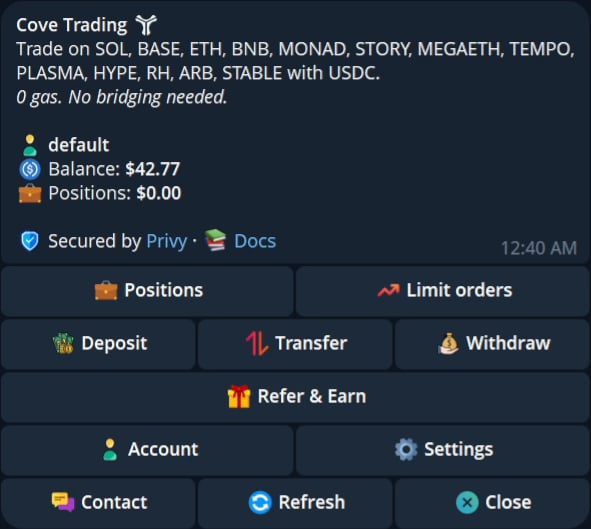 The home screen shows your unified balance, positions, and actions such as Deposit, Transfer, Withdraw, Accounts, Settings, and Contact.
## 2. Deposit
Select `Deposit` and review the address and network shown in the panel before sending funds.
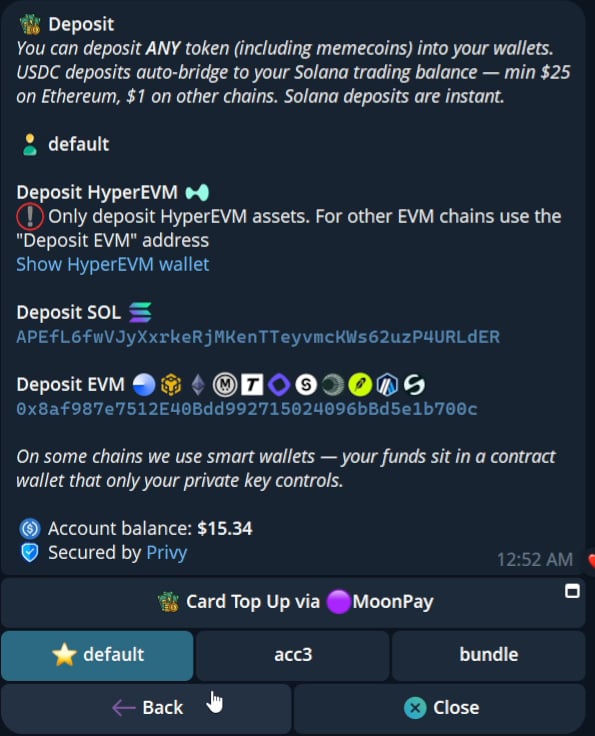
The current UI states that you can deposit any token, including memecoins. It also shows:
* A dedicated Deposit SOL address.
* A dedicated Deposit HyperEVM address.
* A shared Deposit EVM address for other EVM chains.
* USDC deposits that can route into the Solana trading balance.
* Solana deposits described as instant in the current panel.
* A displayed minimum of $25 on Ethereum and $1 on other chains.
* Card Top Up through MoonPay.
Some chains use smart wallets, where funds sit in a contract wallet controlled by your wallet access. Review the current Deposit panel for the exact route, asset, minimum, and fee before sending.
The home screen shows your unified balance, positions, and actions such as Deposit, Transfer, Withdraw, Accounts, Settings, and Contact.
## 2. Deposit
Select `Deposit` and review the address and network shown in the panel before sending funds.
The current UI states that you can deposit any token, including memecoins. It also shows:
* A dedicated Deposit SOL address.
* A dedicated Deposit HyperEVM address.
* A shared Deposit EVM address for other EVM chains.
* USDC deposits that can route into the Solana trading balance.
* Solana deposits described as instant in the current panel.
* A displayed minimum of $25 on Ethereum and $1 on other chains.
* Card Top Up through MoonPay.
Some chains use smart wallets, where funds sit in a contract wallet controlled by your wallet access. Review the current Deposit panel for the exact route, asset, minimum, and fee before sending.
 ## 3. Trade
Send a token contract address to the bot or open a supported token link.
## 3. Trade
Send a token contract address to the bot or open a supported token link.
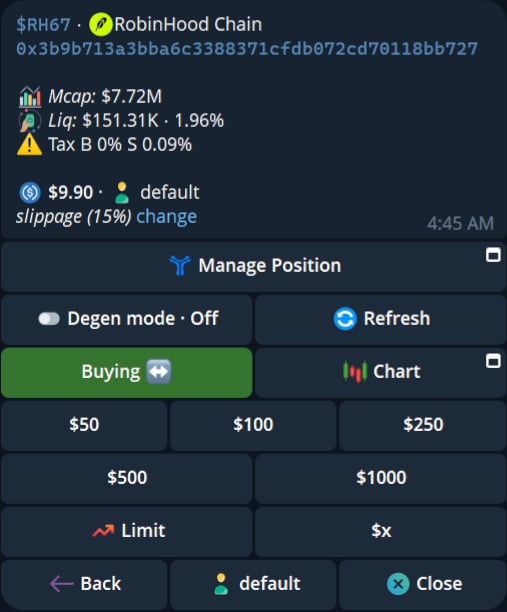 Review the chain, token data, account, amount, slippage, and confirmation settings. Then select a buy or sell action. Follow the receipt and open Positions to review the result.
See [Trading](/features/trading) for the panel controls.
Review the chain, token data, account, amount, slippage, and confirmation settings. Then select a buy or sell action. Follow the receipt and open Positions to review the result.
See [Trading](/features/trading) for the panel controls.