> ## Documentation Index
> Fetch the complete documentation index at: https://docs.cove.trade/llms.txt
> Use this file to discover all available pages before exploring further.
# Wallet security and recovery
> Back up keys, manage Cove's access, and recover a deleted wallet.
Cove uses your Telegram identity and Privy-backed wallets. You own the wallet; Cove's permission to trade and move funds can be removed and restored.
Protect access to Telegram and keep keys private. These wallets use individual private keys rather than a shared seed phrase.
## Export a private key
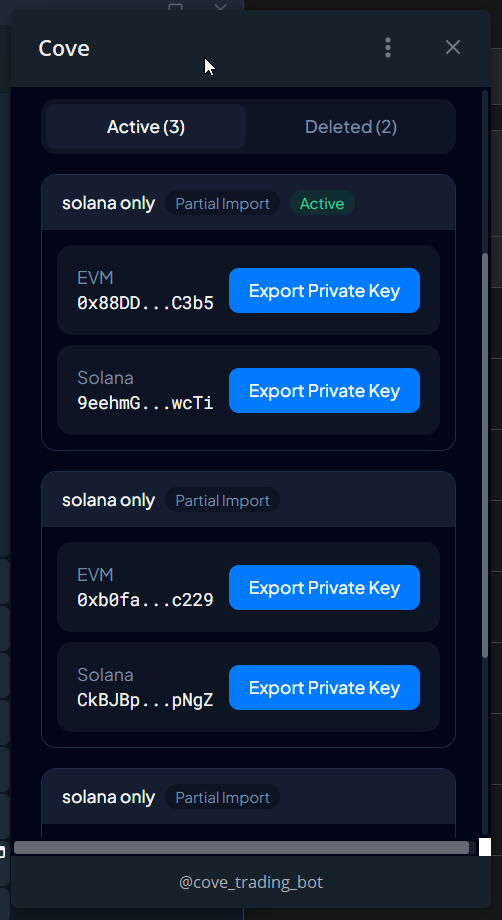
In the primary Cove bot, choose the intended profile, then `/wallets` → **Export Wallet**.
In **Cove Wallets → Active**, check the label and address. If it is in another profile, switch in Telegram and reopen the app.
Tap **Export Private Key**. Follow the Privy-hosted secure window and save the backup somewhere only you can access.
Never share a private key or capture it in a screenshot. Losing a backup may leave you without independent access if you also lose access to your account.
## Delete a wallet from Cove
Review its funds and orders first. Your **primary** wallet and **only** wallet cannot be deleted.
1. Open `/wallets` → its **⚙️** → **Delete Wallet**.
2. Open **Manage Wallets**.
3. Review the wallet, then **Yes, Delete & Revoke** if you intend to remove access.
Deletion hides the wallet and removes Cove's ability to trade or move funds. It does not sell its tokens or erase the blockchain wallet.
## Recover a deleted wallet
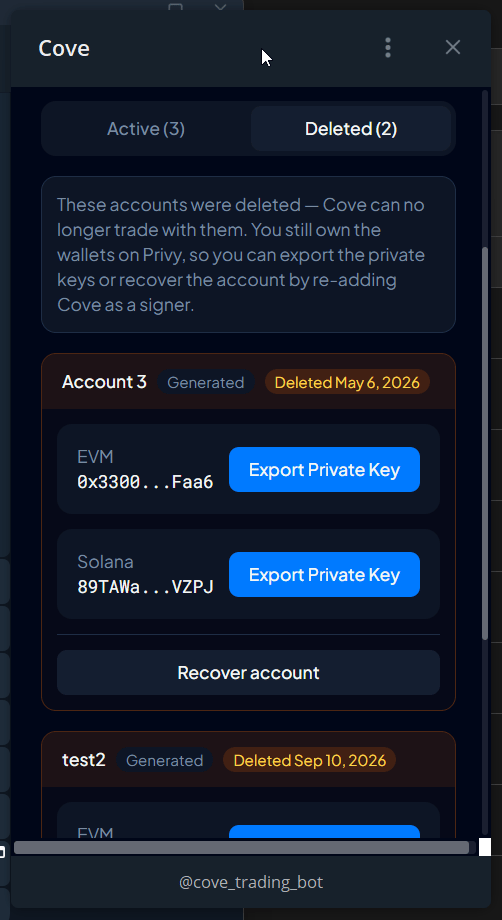
Open **Cove Wallets → Deleted**, find the wallet, tap **Recover**, then **Yes, Recover**. Return to `/wallets` and check the wallet selection.
Re-importing its key does not restore a deleted wallet; use **Recover**.
## Restore lost access
If a wallet shows **Signing access lost**, open Cove Wallets → **Restore access** and confirm. Wait for **Signing access restored** before retrying.
Until then, trades, transfers, and withdrawals may fail. If every wallet loses access, deposits may also be unavailable.
## Downgrade a smart wallet
Where available, `/wallets` → **⚙️ → Downgrade Smart Wallet** removes the smart-wallet authorization used on applicable chains. Review the prompt. A later Cove trade may enable it again. This differs from deleting the wallet and revoking Cove's access.
## Wrong Telegram account in a Mini App
Tap **Switch to this Telegram account**. If that fails, close the app and reopen it from the intended Telegram account. Use `/bots` to find the primary bot when a secure operation is unavailable on a backup.
Manage external agents using the [MCP guide](/builders/mcp-tools). [Support](/features/support) never needs your keys or access tokens.