> ## Documentation Index
> Fetch the complete documentation index at: https://docs.cove.trade/llms.txt
> Use this file to discover all available pages before exploring further.
# Limit Orders
> Create and manage limit buys, take-profit orders, and stop-loss orders
Limit orders let you define an entry or exit condition and review the order later from the active orders view.
## Limit buy
1. Open the Buy panel for a token.
2. Select `Limit`.
3. Enter the target and amount.
4. Review the expected output.
5. Confirm the order.
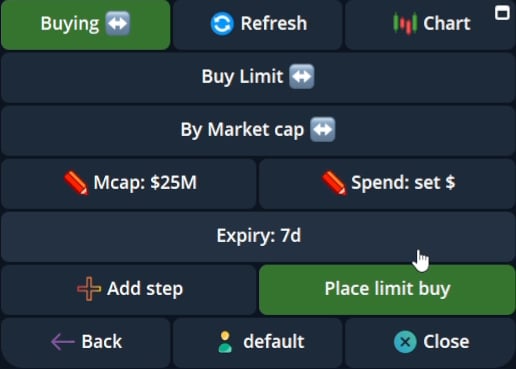 Cove shows the order in the active orders list after it is created.
## Take profit
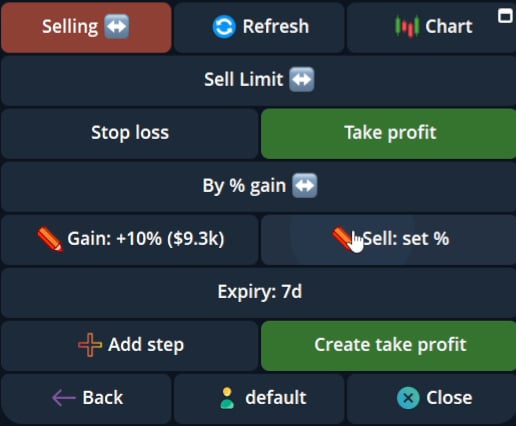
1. Open the Sell panel for an active position.
2. Select `Create Take Profit`.
3. Enter the gain target and sell percentage.
4. Review and confirm.
Multiple levels can appear in the position card.
Cove shows the order in the active orders list after it is created.
## Take profit
1. Open the Sell panel for an active position.
2. Select `Create Take Profit`.
3. Enter the gain target and sell percentage.
4. Review and confirm.
Multiple levels can appear in the position card.
 ## Stop loss
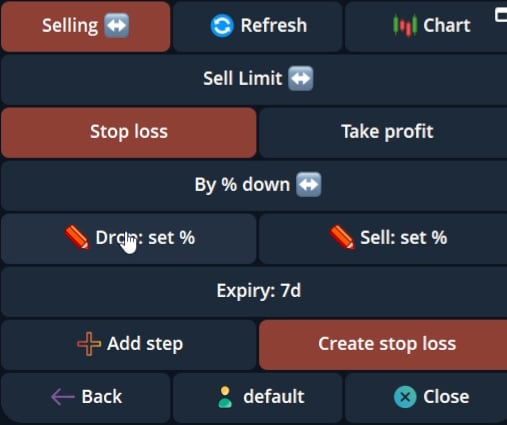
1. Open the Sell panel for an active position.
2. Select `Create Stop Loss`.
3. Enter the loss target and sell percentage.
4. Review and confirm.
## Stop loss
1. Open the Sell panel for an active position.
2. Select `Create Stop Loss`.
3. Enter the loss target and sell percentage.
4. Review and confirm.
 ## Active orders
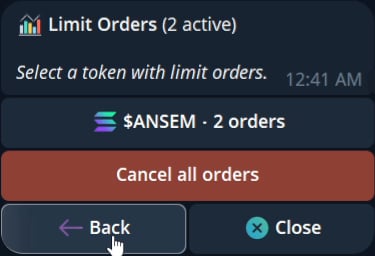
Open `Limit Orders` from the main menu to see active orders grouped by token. Each order exposes its trigger and target with Edit and Cancel where supported. The dashboard also includes `Cancel all orders` with a confirmation step.
## Active orders
Open `Limit Orders` from the main menu to see active orders grouped by token. Each order exposes its trigger and target with Edit and Cancel where supported. The dashboard also includes `Cancel all orders` with a confirmation step.