> ## Documentation Index
> Fetch the complete documentation index at: https://docs.cove.trade/llms.txt
> Use this file to discover all available pages before exploring further.
# Manage orders
> Check, edit, cancel, and troubleshoot orders in the correct profile.
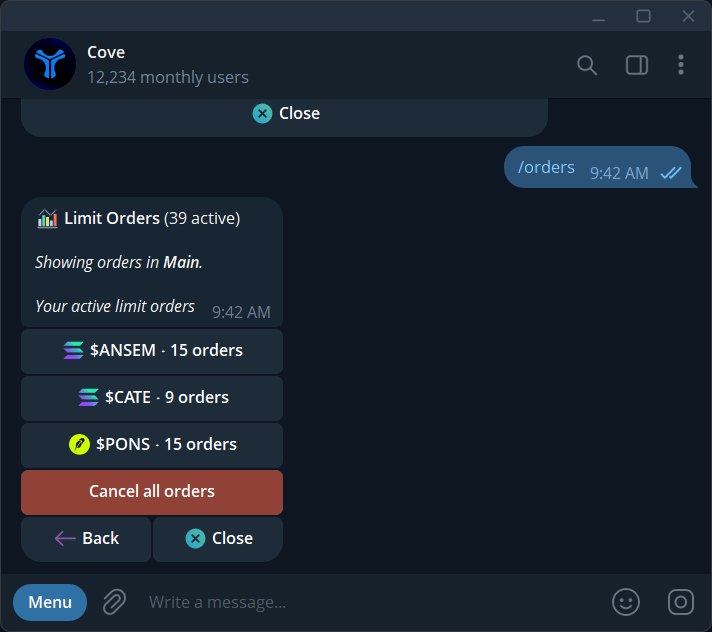
Send `/orders` or open **Limit orders** from the main menu. The list is scoped to the **active profile**.
## Find and inspect an order
1. Check **Showing orders in** and the profile name.
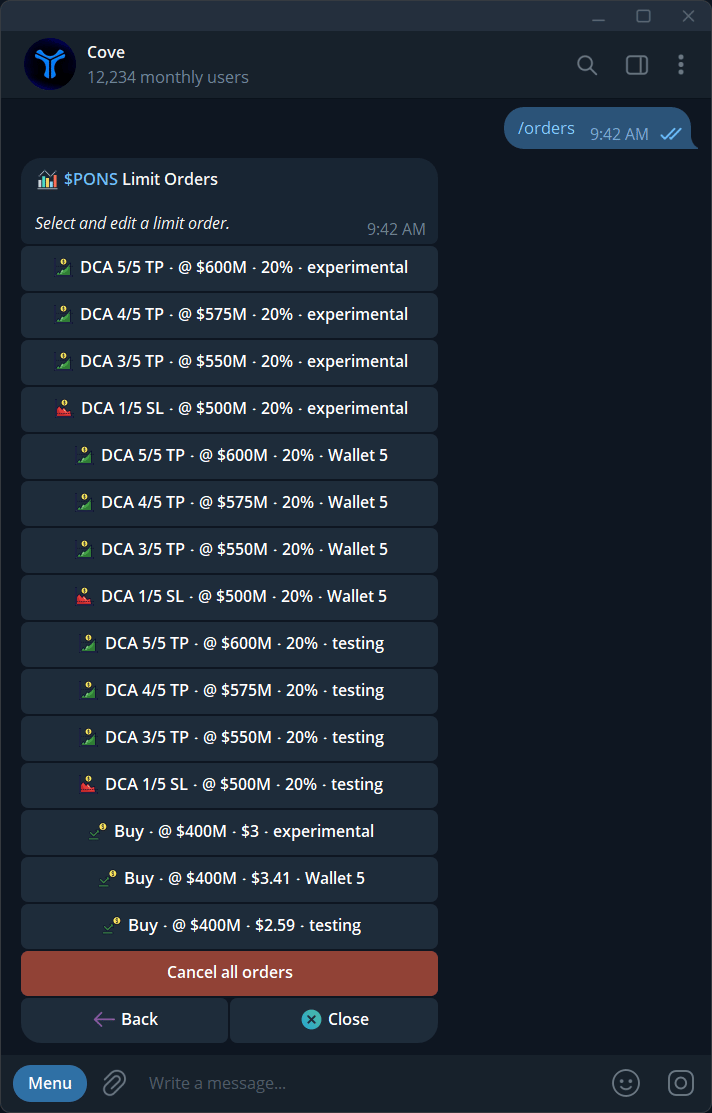
2. Open the token's order group.
3. Select the order to inspect its type, trigger, amount, expiry, and status.
4. Check all participating wallets for a multi-wallet setup.
A token's trading panel can also show its **Active Orders**.
## Edit or cancel
While an order is **pending**, choose **Edit** to change its supported trigger, amount, or expiry. Review the new values in the order detail afterward.
Cancellation options include **Cancel** for one order, **Cancel all orders** for a token or broader list, and **Cancel DCA group** for a ladder's remaining rungs. Read the confirmation's scope before proceeding.
Canceling an order does not reverse a completed fill. Closing a panel does not cancel anything.
## Understand statuses
| Status or message | Meaning and next step |
| ------------------------------ | --------------------------------------------------------- |
| **Pending / active** | Waiting for its condition; edit or cancel if needed |
| **Triggered / executing** | A trade is being attempted; follow the receipt |
| **Success / filled** | Review the executed amount and resulting position |
| **Partial fill** | Read what filled and what remains before another action |
| **Failed** | Check the reason; a replacement may be needed |
| **Cancelled** | The order was canceled |
| **Expired** | Its time limit ended; create a new order if still wanted |
| **Didn't Fire — still active** | High impact blocked execution but the order remains armed |
| **No longer armed** | The protection has ended; recreate it if still needed |
## High-impact orders that did not fire
The message may say **Nothing sold** or **Nothing bought** and **Your order is still active**. You can wait for acceptable conditions, cancel, or review the one-time **Execute anyway / Sell anyway** option.
An accepted override arms an attempt at a subsequent price check. It does not guarantee the result or permanently change your settings.
Overriding high price impact can produce much less value than the displayed position worth. Read the estimated amounts first.
## A stop is no longer armed
If network costs exceed sponsorship and the stop cannot execute, the message can explicitly say that protection is gone.
1. Open `/orders` and check the status.
2. Review your [Gas surplus budget](/features/settings/guardrails#gas-surplus-budget).
3. If you choose **Auto-pay gas up to**, remember this changes the standing budget.
4. Create the missing stop again and verify it.
Changing a budget does not rearm or complete the old order.
## Other problems
* **Target never reached:** adjust or wait until expiry.
* **Slippage failure:** use the offered retry only after checking the quote and existing result.
* **Generic Trade failed:** forward the message with its reference to [Support](/features/support).
* **Profile switched:** open a fresh panel in the intended profile.
* **Auto TP/SL Incomplete:** add the missing order manually and verify it.
Orders keep running after you close Telegram, switch profiles, or archive a profile. Check every relevant profile before assuming all automation is stopped.