> ## Documentation Index
> Fetch the complete documentation index at: https://docs.cove.trade/llms.txt
> Use this file to discover all available pages before exploring further.
# Read the token panel
> Find tokens and understand market data, warnings, positions, and shortcuts.
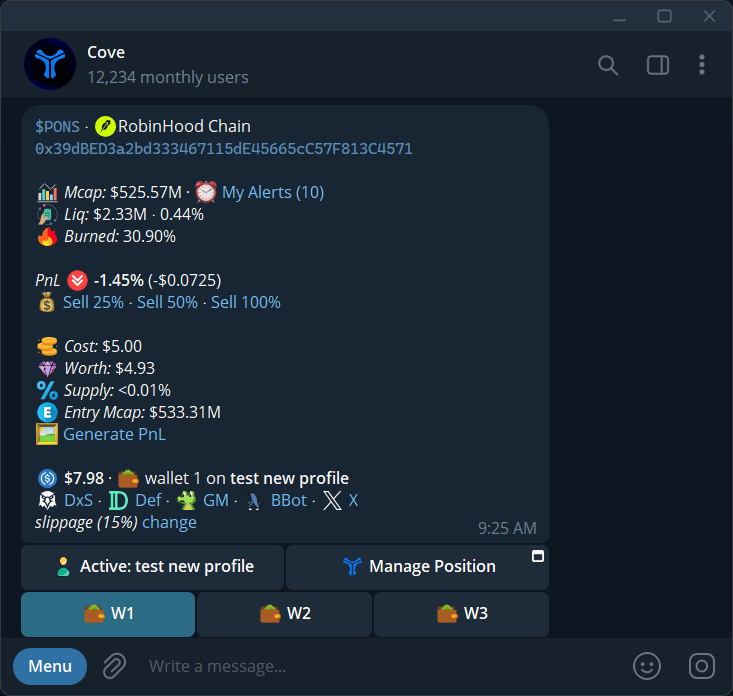
Paste a token contract address to open its trading panel. You can also tap a ticker in Positions or paste a supported token link.
## Find the right token
Cove accepts contract addresses, chain-suffixed addresses, token/pool links from services such as DexScreener, Defined, GMGN, Birdeye, Photon, and GeckoTerminal, and certain X search links. A short symbol or name can resolve to a matching token; always check the address.
If an address exists on several chains, Cove can show a picker. Choose the network you intended. A failed link lookup can often be resolved by pasting the token's contract address directly.
**Arc is supported.** Paste the Arc token's contract address, select **Arc** if asked, and check the chain label on the panel. See [Supported chains](/essentials/supported-chains) for the full trading-network list.
## Read the fields
| Field | Meaning |
| ------------------------------------- | ------------------------------------------------------- |
| Token name, symbol, address, chain | The asset you are viewing |
| **Mcap / MC** | Market capitalization; used for order and alert targets |
| **Liquidity** | Liquidity available in the token's market |
| **Mintable / Freezable** | Token controls that can affect supply or transfers |
| **Tax B/S** | Buy/sell token taxes, where reported |
| **Pool Tax** | A separate pool charge, shown for high-fee pools |
| **🚨 warning / audit pending** | Scanner concern or an incomplete check |
| Position/PnL block | Your holding and performance; may aggregate wallets |
| **Slippage → change** | Current price-movement tolerance |
| **Active profile / selected wallets** | Which funds and settings an action will use |
| **Also held in** | A holding in another profile |
Scanner data is information, not a guarantee that a token is safe or sellable. If **Find out why** appears, open it to read the concern.
## Buttons and links
| Control | Action |
| ----------------------------- | ---------------------------------------------- |
| **Buying / Selling** | Change the trading side |
| Amount and percentage presets | Choose a trade size; may execute immediately |
| **Limit** | Open limit, DCA, and trailing-order controls |
| **Add Alert / My Alerts** | Create or manage alerts |
| **Chart** | Open the chart provider selected in settings |
| **Manage Position** | Open the Positions Mini App |
| **Generate PnL** | Create a shareable performance card |
| Wallet picker | Select trading wallets |
| **Degen mode** | Enable or disable the high-risk trading preset |
Display preferences can hide buttons, nest wallets, add external links, or translate Chinese token names where available. See [Trade panel settings](/features/settings/trade-panel).
## Native tokens
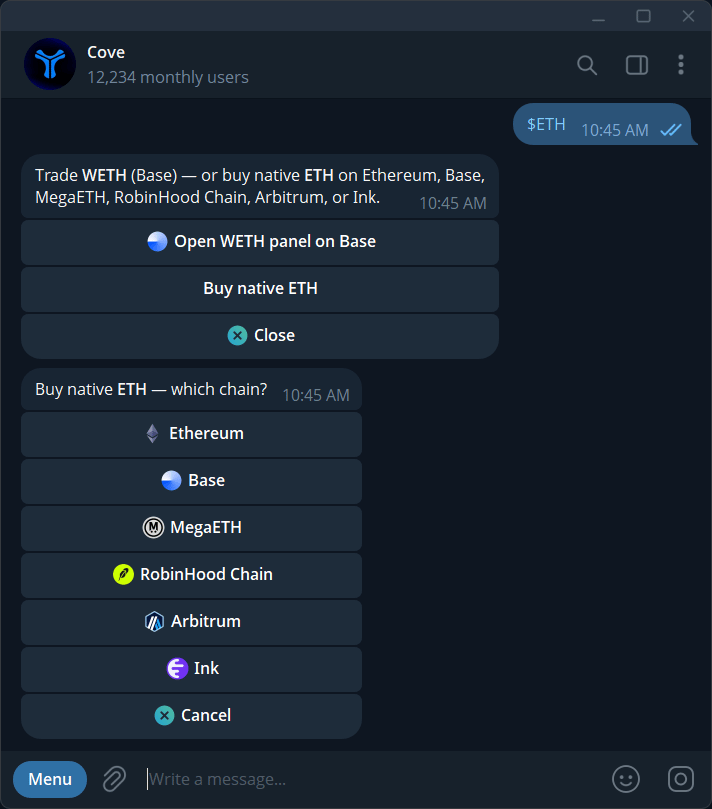
To open the buying flow for a native token, **type and send its ticker in the Cove chat with a dollar sign**: `$SOL`, `$ETH`, or `$BNB`.
1. Send the ticker, including the **\$** prefix.
2. If Cove offers a choice between a wrapped-token panel and a native-token purchase, choose **Buy native** for the native token. For example, after `$ETH`, tap **Buy native ETH** rather than **Open WETH panel on Base**.
3. Select the network when prompted.
4. In the buying panel, choose the amount and review any quote or confirmation before proceeding.
Ordinary native-token panels do not offer the same limit-order and alert controls as token panels. If Cove asks for a wrapped-token address, use the wrapped token's verified contract address.
Native/wrapped-native PnL can show **Unavailable**. A full native sell may leave a network reserve; for example, Monad can retain about 10 MON. Native OKB buying is not offered on X Layer.