> ## Documentation Index
> Fetch the complete documentation index at: https://docs.cove.trade/llms.txt
> Use this file to discover all available pages before exploring further.
# Trading
> Open token panels, review token data, and execute buys or sells
Send a token contract address to Cove or open a supported token link. Cove resolves the token and chain, then opens the trading panel.
 ## Before you submit
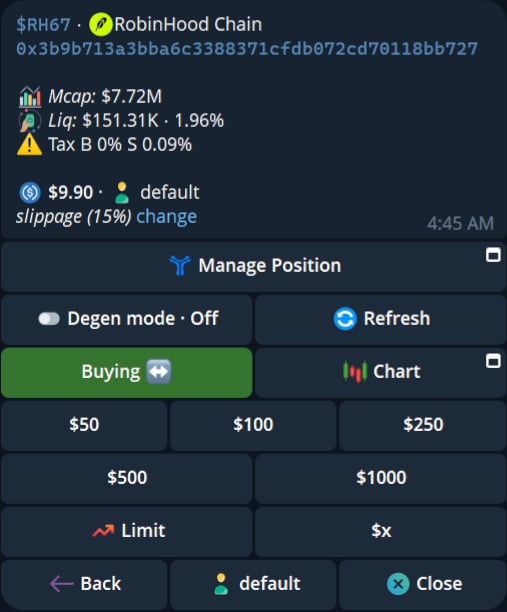
Review the token name, ticker, chain, contract address, market cap, liquidity, token tax when available, and burned percentage when available. Cove also shows account context and the current token position when you hold it.
The panel can include:
* Buy and Sell tabs.
* Account selector, including multiple selected accounts.
* Degen mode.
* Configured buy and sell presets.
* Custom amount.
* Chart.
* Limit action.
* Extra links.
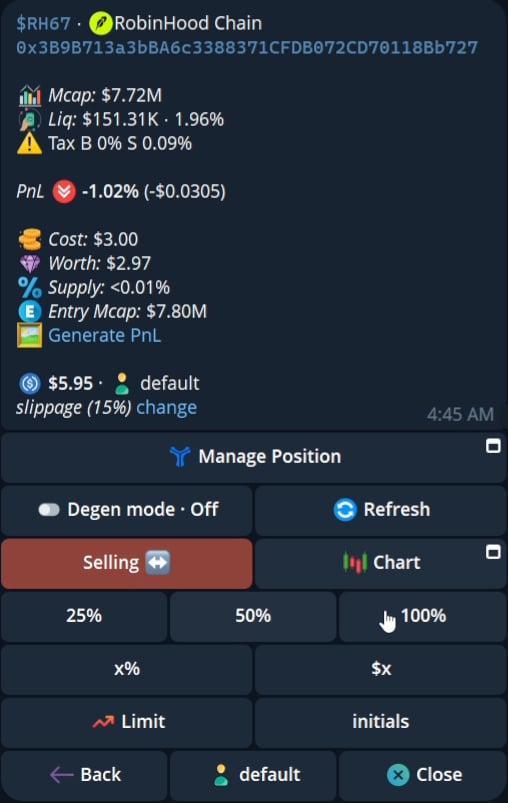
* PnL, Cost, Worth, supply percentage, and entry market cap when a position exists.
Choose a buy preset or open the custom amount control. If Buy Confirm is enabled, review the confirmation card before submitting.
## Before you submit
Review the token name, ticker, chain, contract address, market cap, liquidity, token tax when available, and burned percentage when available. Cove also shows account context and the current token position when you hold it.
The panel can include:
* Buy and Sell tabs.
* Account selector, including multiple selected accounts.
* Degen mode.
* Configured buy and sell presets.
* Custom amount.
* Chart.
* Limit action.
* Extra links.
* PnL, Cost, Worth, supply percentage, and entry market cap when a position exists.
Choose a buy preset or open the custom amount control. If Buy Confirm is enabled, review the confirmation card before submitting.
 Choose a sell preset or enter a custom amount. If Sell Confirm is enabled, review the confirmation card before submitting.
 Select Chart to open the chart inside the Telegram flow.
## Receipts and routes
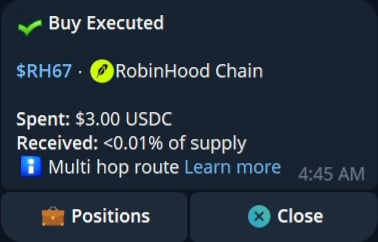
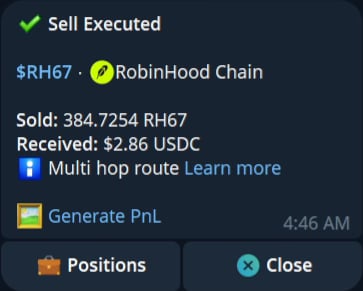
After a submitted order, Cove can show Buy Executed, Sell Executed, or Stop Loss Executed. A receipt can include the route, positions, and a Close action. Multi-hop routes include a Learn more link.
## More actions
Use Limit for entry orders, take profit, stop loss, or DCA. Use View detailed to open the position details. Use Generate PnL to create a shareable PnL card. Active orders expose Edit and Cancel where supported.
See [Limit Orders](/features/limit-orders), [DCA Orders](/features/dca-orders), [Positions](/features/positions), and [PnL Cards](/features/pnl-cards).
Select Chart to open the chart inside the Telegram flow.
## Receipts and routes
After a submitted order, Cove can show Buy Executed, Sell Executed, or Stop Loss Executed. A receipt can include the route, positions, and a Close action. Multi-hop routes include a Learn more link.
## More actions
Use Limit for entry orders, take profit, stop loss, or DCA. Use View detailed to open the position details. Use Generate PnL to create a shareable PnL card. Active orders expose Edit and Cancel where supported.
See [Limit Orders](/features/limit-orders), [DCA Orders](/features/dca-orders), [Positions](/features/positions), and [PnL Cards](/features/pnl-cards).