> ## Documentation Index
> Fetch the complete documentation index at: https://docs.cove.trade/llms.txt
> Use this file to discover all available pages before exploring further.
# Transfers & Withdrawals
> Move USDC between Cove accounts, Telegram users, and external wallets
The Transfer and Withdraw panels expose separate flows. Review the destination, chain, amount, and fee before confirming.
## Transfer between Cove accounts
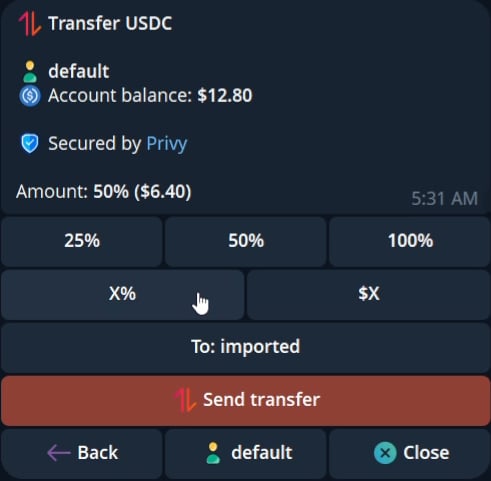
1. Open `Transfer`.
2. Select the internal account transfer flow.
3. Choose a percentage preset or enter a custom amount.
4. Select the destination Cove account.
5. Review the transfer details.
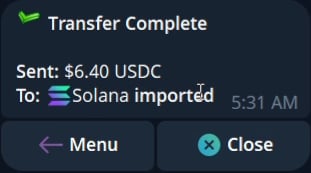
6. Confirm and check the receipt.
The current UI transfers USDC between Cove accounts and names the destination account in the success receipt.
 ## Transfer to a Telegram user
1. Open `Transfer`.
2. Select the Telegram user flow.
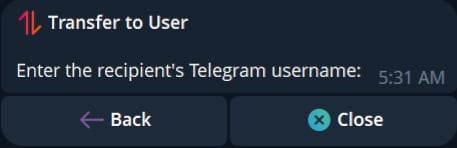
3. Enter the exact Telegram username.
4. Choose a percentage preset or custom amount.
5. Review the destination and amount.
6. Confirm and check the success receipt.
Enter the recipient's exact Telegram username.
## Transfer to a Telegram user
1. Open `Transfer`.
2. Select the Telegram user flow.
3. Enter the exact Telegram username.
4. Choose a percentage preset or custom amount.
5. Review the destination and amount.
6. Confirm and check the success receipt.
Enter the recipient's exact Telegram username.
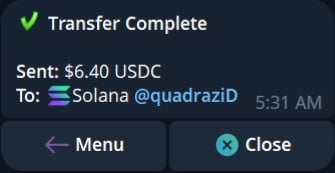 ## Withdraw unified USDC
1. Open `Withdraw`.
2. Choose a percentage preset or custom amount.
3. Select the destination chain.
4. Enter the destination wallet.
5. Review the network fee and final amount.
6. Confirm and keep the explorer link from the receipt when one is provided.
## Withdraw unified USDC
1. Open `Withdraw`.
2. Choose a percentage preset or custom amount.
3. Select the destination chain.
4. Enter the destination wallet.
5. Review the network fee and final amount.
6. Confirm and keep the explorer link from the receipt when one is provided.
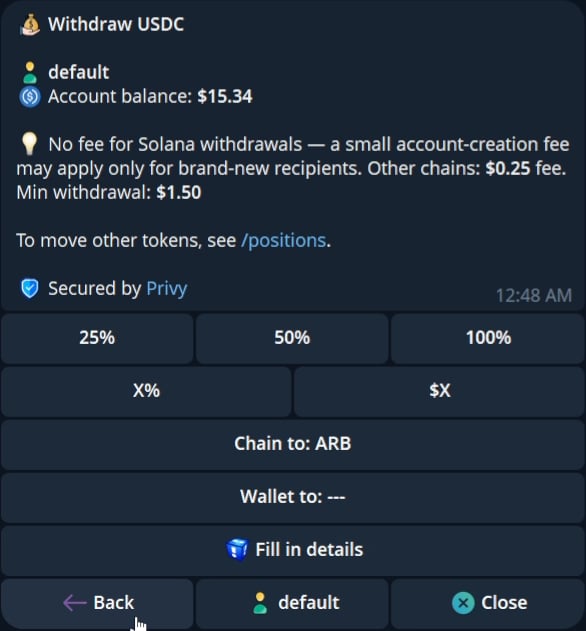 Available destination chains and fees appear in the withdrawal panel.
## Withdraw a token
Token withdrawal is a separate flow from unified USDC withdrawal.
1. Select the token and amount.
2. Choose the destination chain.
3. Enter the wallet address.
4. Review the fee and asset details.
5. Confirm and check the receipt.
Do not reuse an address from a different chain. Verify the address format and destination chain in the final review.
Available destination chains and fees appear in the withdrawal panel.
## Withdraw a token
Token withdrawal is a separate flow from unified USDC withdrawal.
1. Select the token and amount.
2. Choose the destination chain.
3. Enter the wallet address.
4. Review the fee and asset details.
5. Confirm and check the receipt.
Do not reuse an address from a different chain. Verify the address format and destination chain in the final review.