

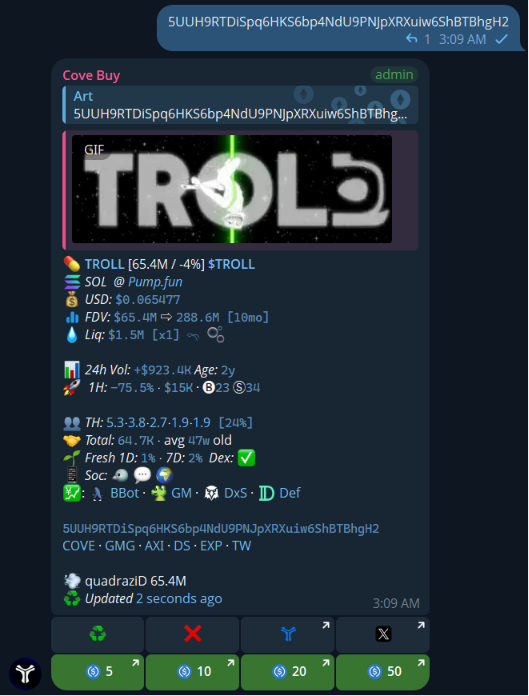
For Group Owners
- 💸 Earn from buys and sells
- 🔗 Add custom ref links
- ⬆ Increase Engagement
For Group Members
- 🚀 Faster entries
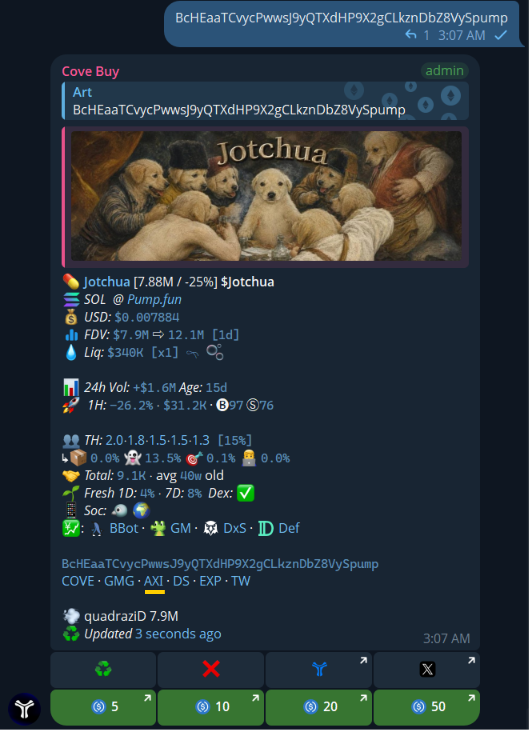
- 📊 All-in-one token data
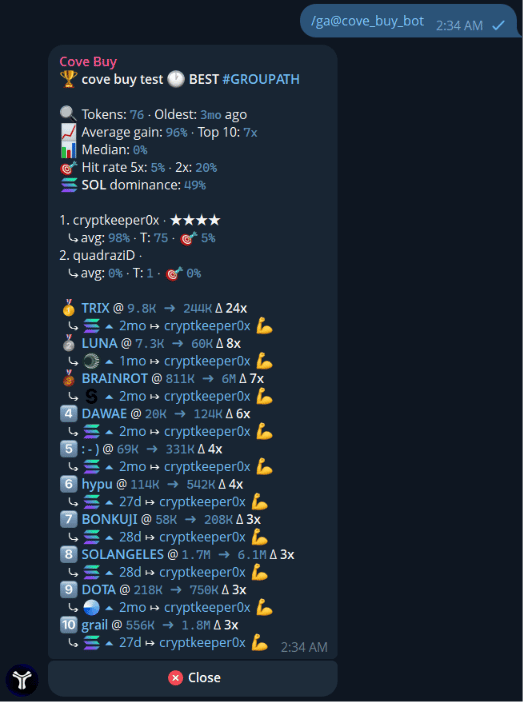
- 🏆 Group Leaderboard
- 🧼 Cleaner trading UX for groups
Available Features
Explore the extensive toolset Cove Buy brings directly to your Telegram community. We’ve organized the commands into categories so you can quickly find what you need.🔎 Discovery & Search
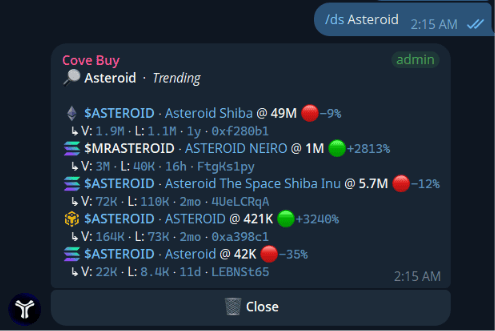
/ds <query> — Search pairs by name/ticker
/ds <query> — Search pairs by name/ticker
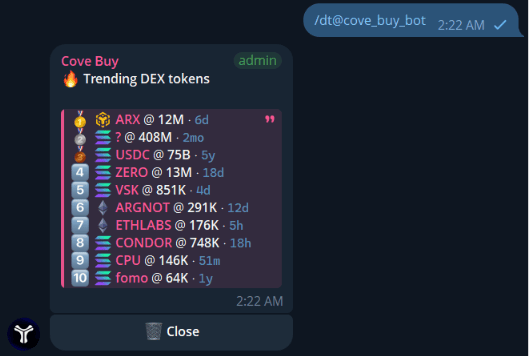
/dt — Trending tokens by recent scans
/dt — Trending tokens by recent scans
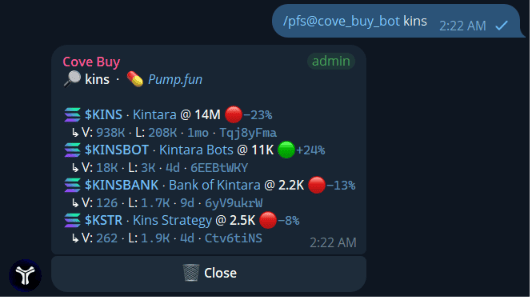
/pfs <query> — Search Pump.fun tokens
/pfs <query> — Search Pump.fun tokens
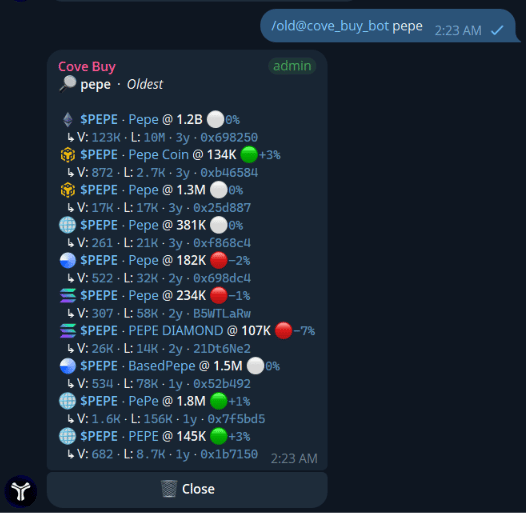
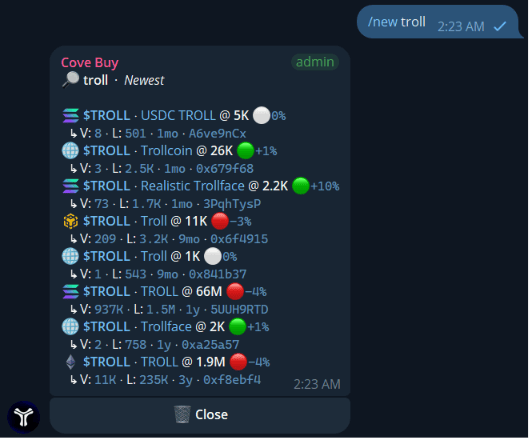
/old & /new — Search by age
/old & /new — Search by age
- /old <ticker>
- /new <ticker>
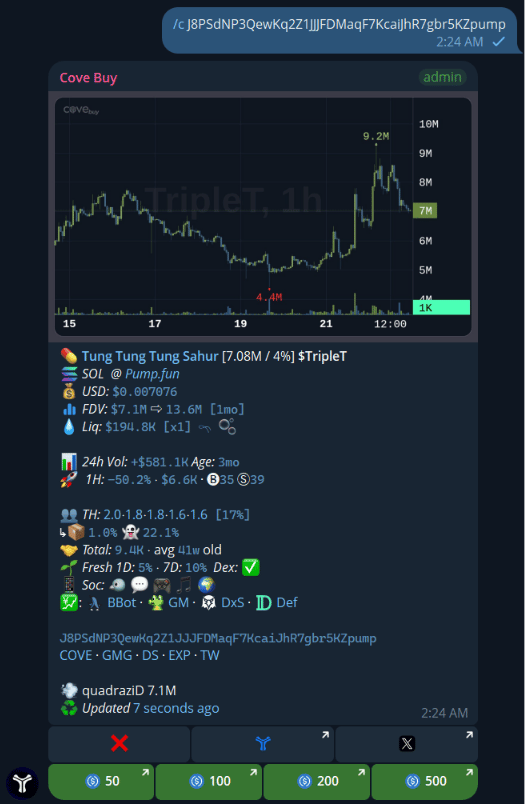
/c 0x… — Token card + chart
/c 0x… — Token card + chart
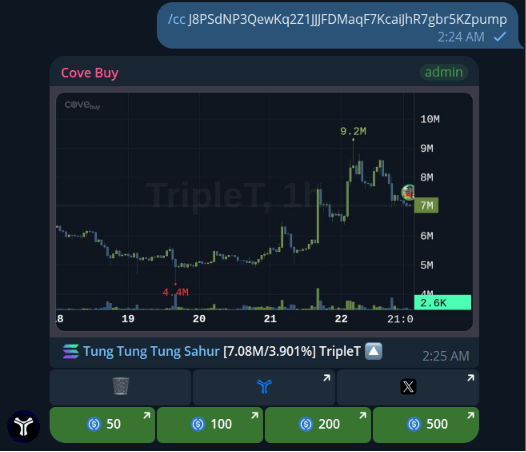
/cc 0x… — Dex chart image
/cc 0x… — Dex chart image
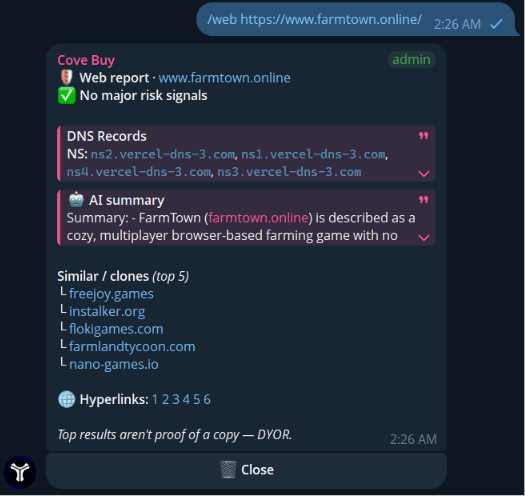
/web <url> — Scan a site
/web <url> — Scan a site
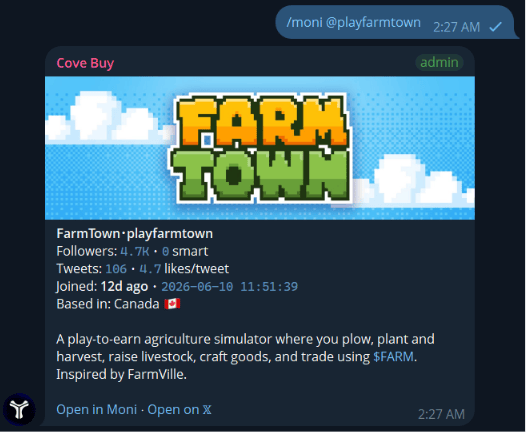
/moni <@handle> — Scan a Twitter/X profile
/moni <@handle> — Scan a Twitter/X profile
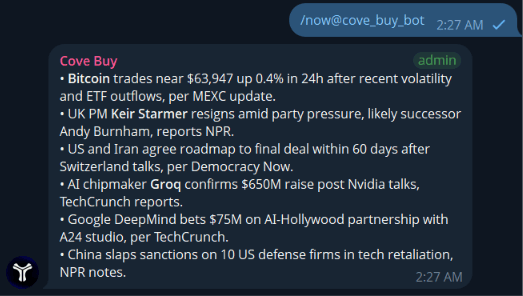
/now — Global news roundup
/now — Global news roundup
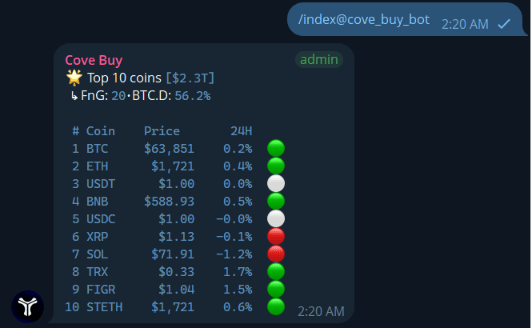
Market Overviews (/index & /vol)
Market Overviews (/index & /vol)
- /index
- /vol
🕵️ Token Intel
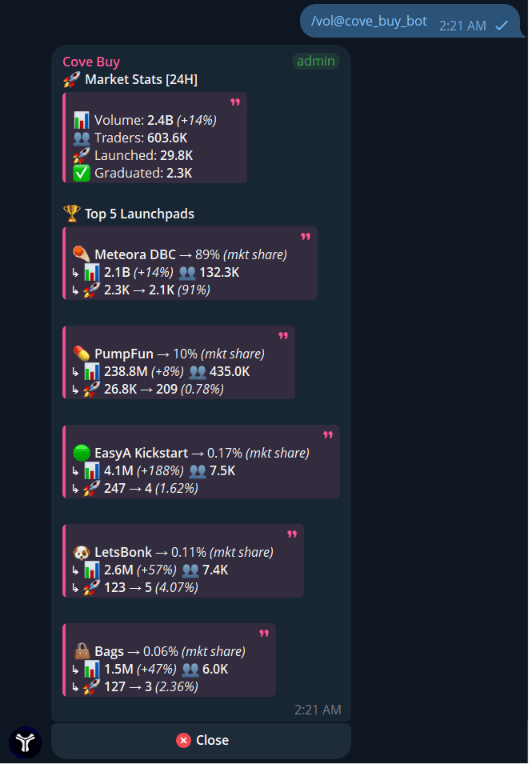
/nh 0x… — Notable holders
/nh 0x… — Notable holders
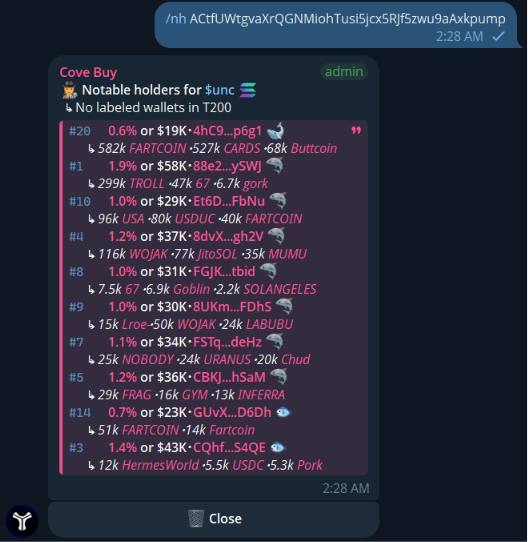
/dp 0x… — DexPaid & CTO status
/dp 0x… — DexPaid & CTO status
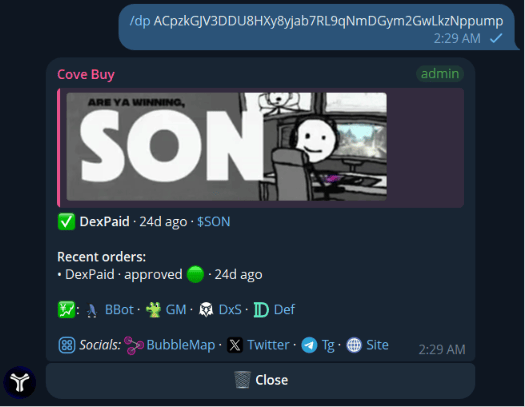
/dev <token|wallet> — Dev’s launches
/dev <token|wallet> — Dev’s launches
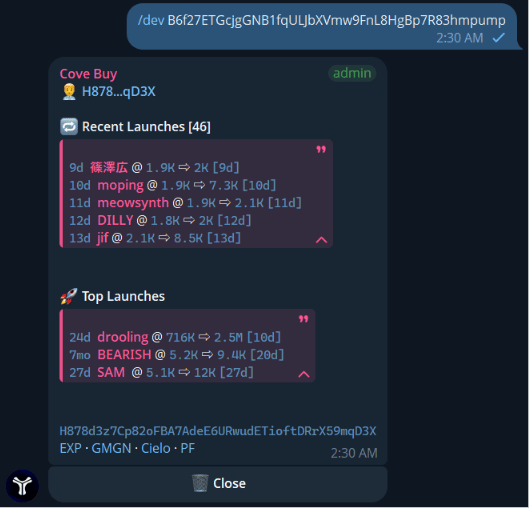
/wallet <addr> — Wallet PnL & stats
/wallet <addr> — Wallet PnL & stats
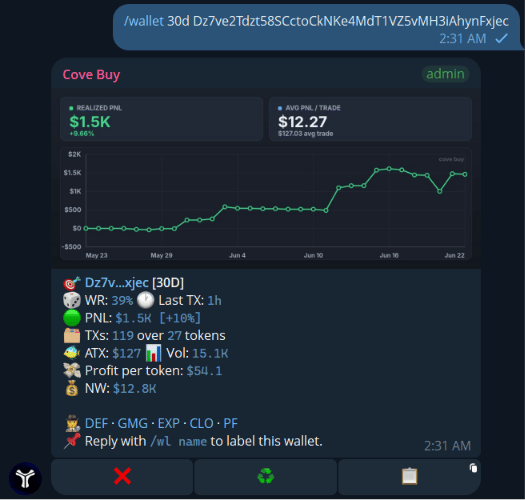
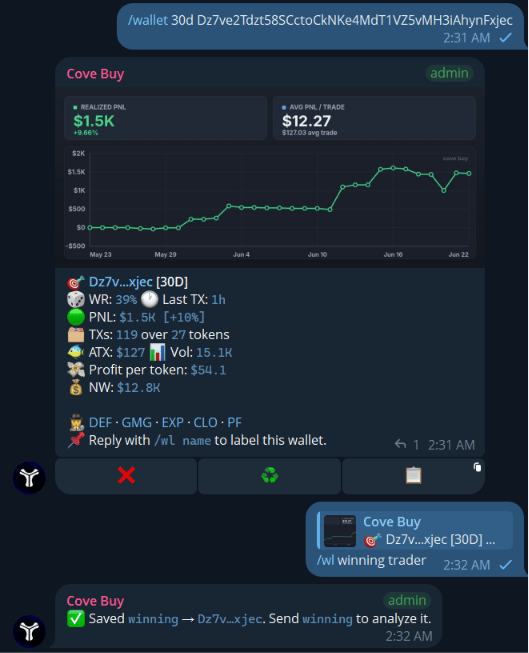
/wl <name> — Label a wallet
/wl <name> — Label a wallet
🎨 Social & Fun
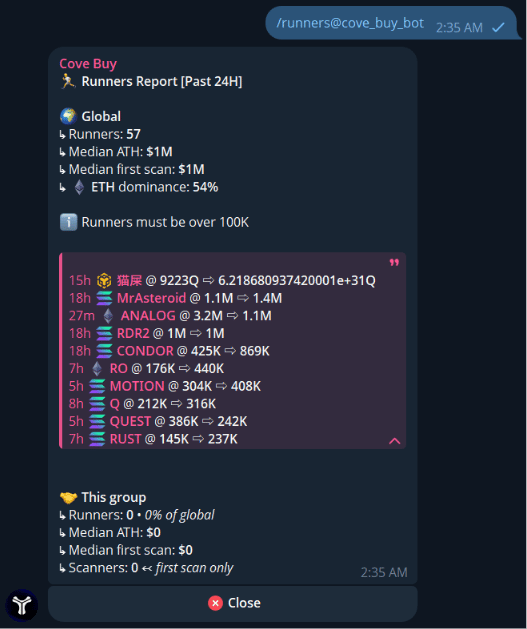
Leaderboards (/ga & /runners)
Leaderboards (/ga & /runners)
- /ga (Leaderboard)
- /runners
/flex 0x… — Flexcard
/flex 0x… — Flexcard
/fleximg and /flexfont to customize it.
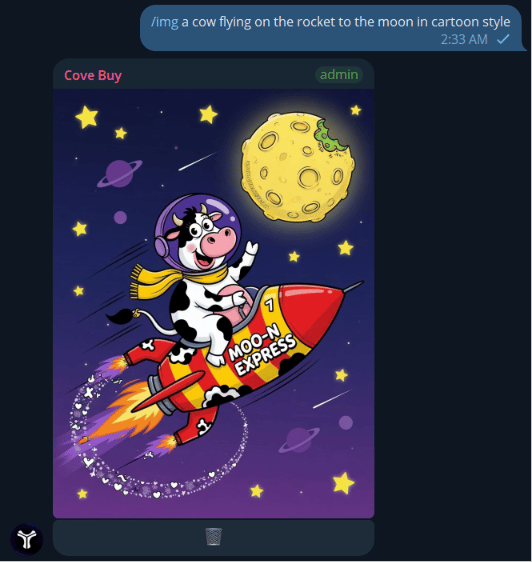
(Requires a winning trade to generate)/img <prompt> — Generate an image
/img <prompt> — Generate an image
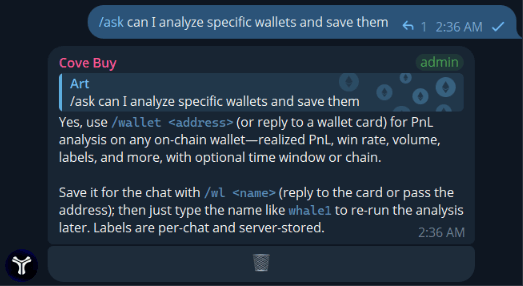
/ask — Ask a question
/ask — Ask a question
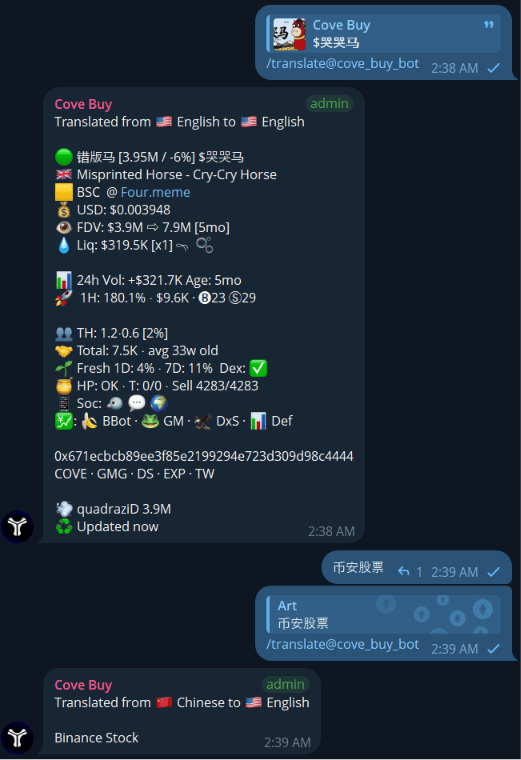
/translate — Translate text
/translate — Translate text
⚙️ Group Admin
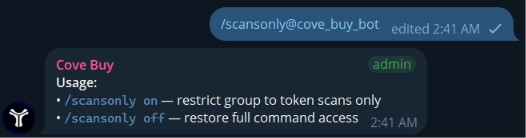
/scansonly on|off
/scansonly on|off
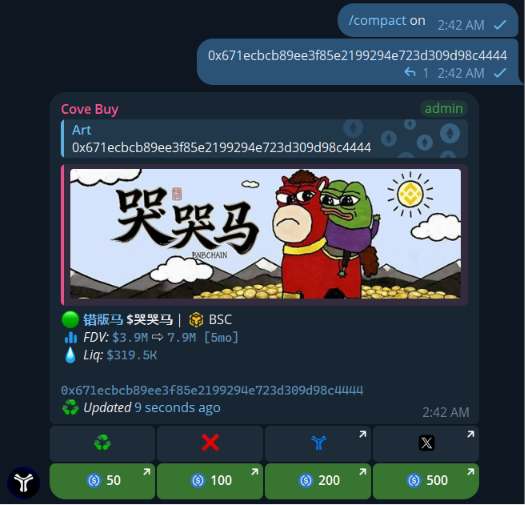
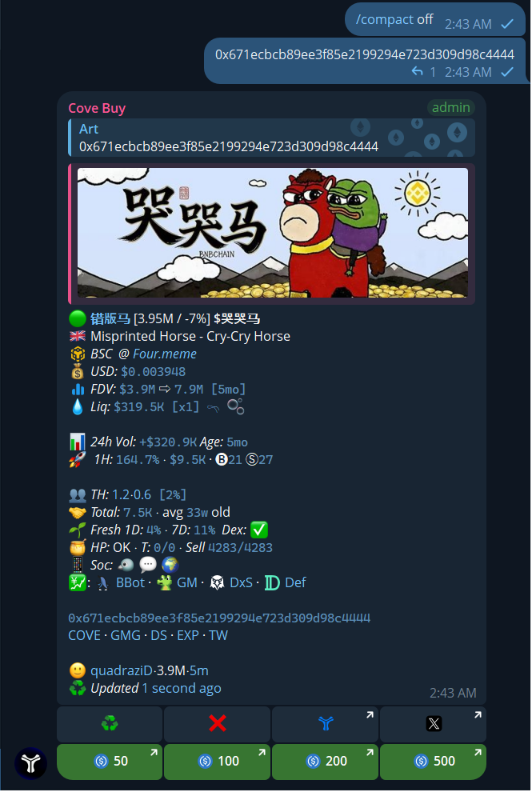
/compact on|off
/compact on|off
- Compact ON
- Compact OFF
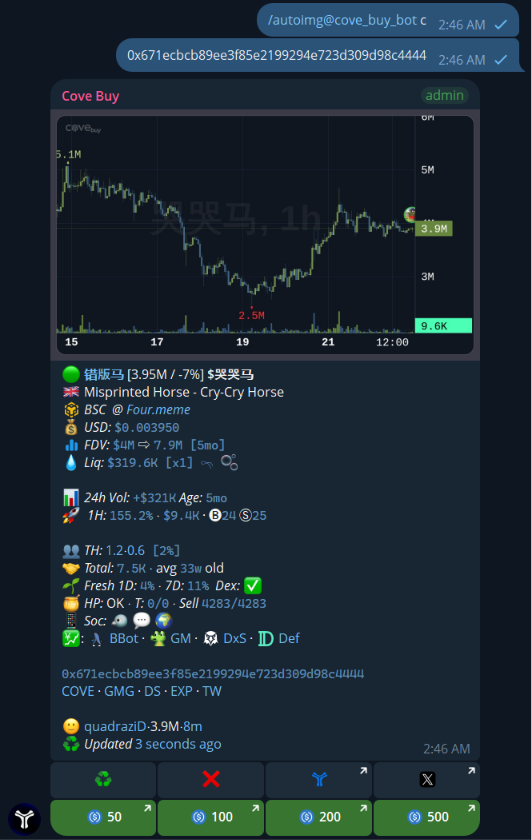
- Chart (c)
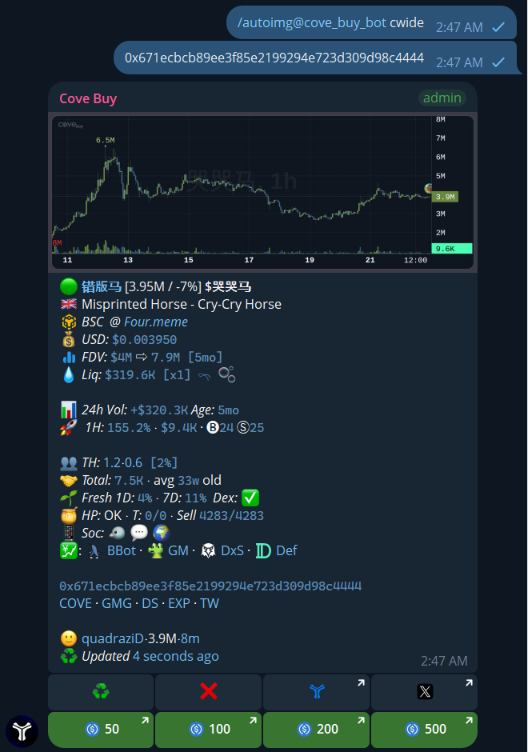
- Wide Chart (cwide)
- Image (img)
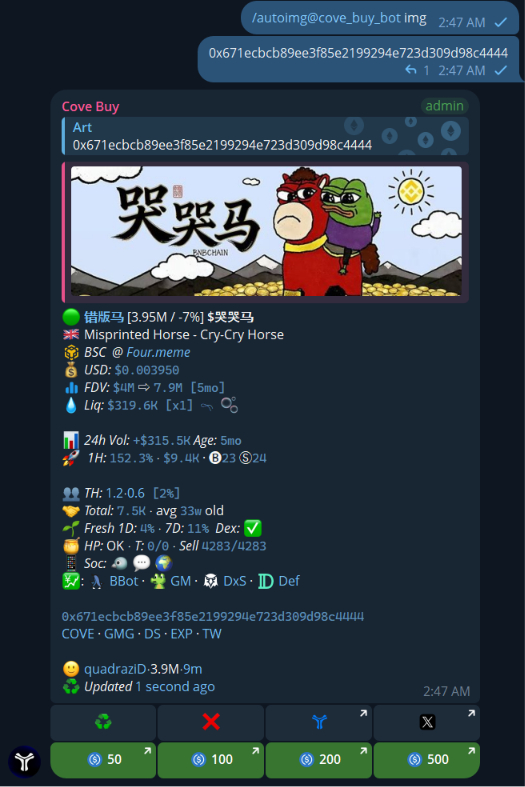
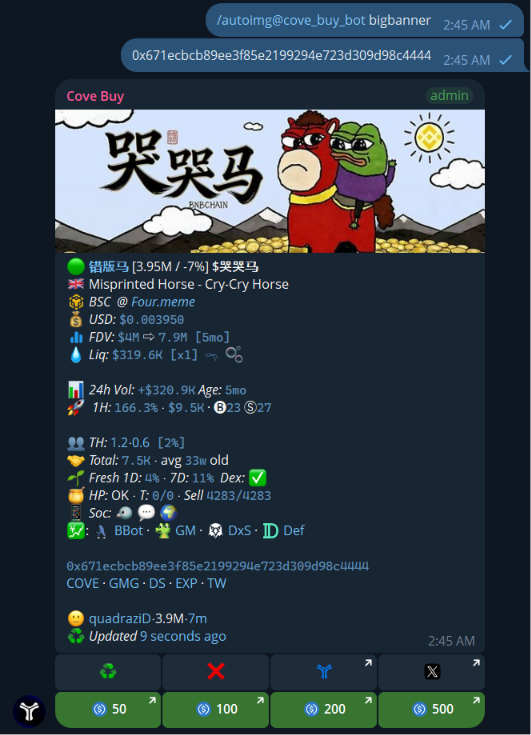
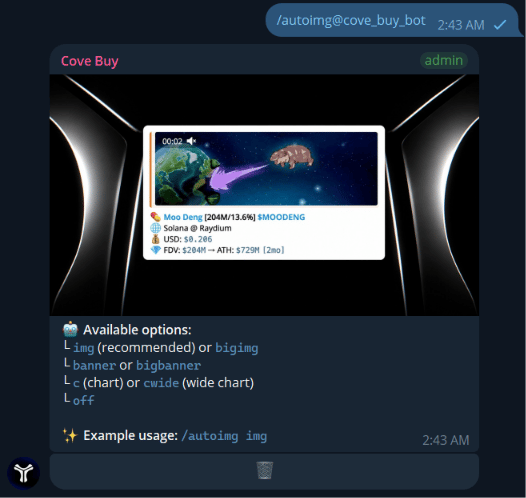
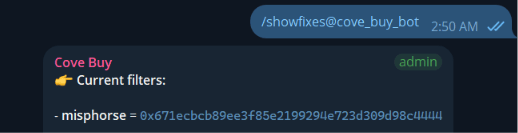
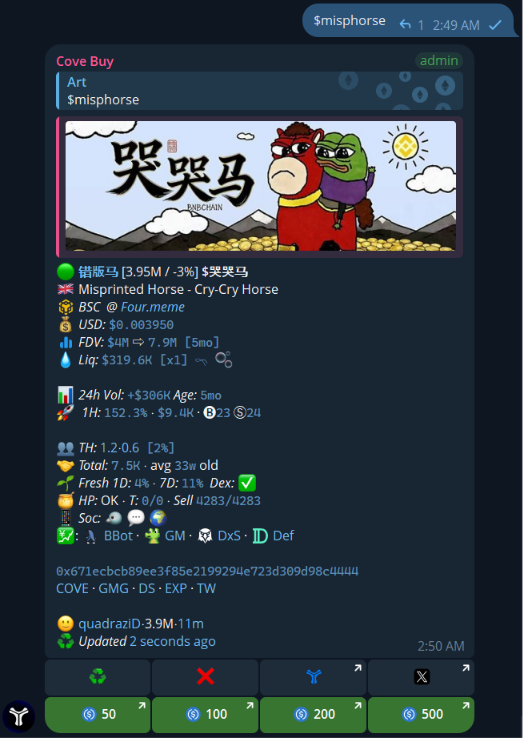
/covefix & /showfixes — Token filters
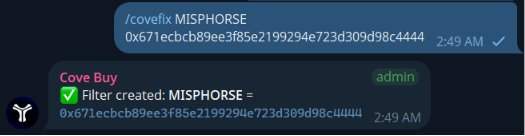
/covefix & /showfixes — Token filters
- /covefix
- /showfixes
- Misphorse Fix
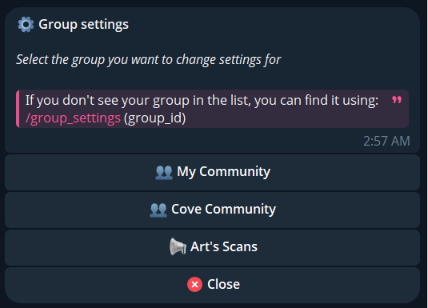
/group_settings
/group_settings
🛠️ How to Set Up Cove Buy
Start the Bot
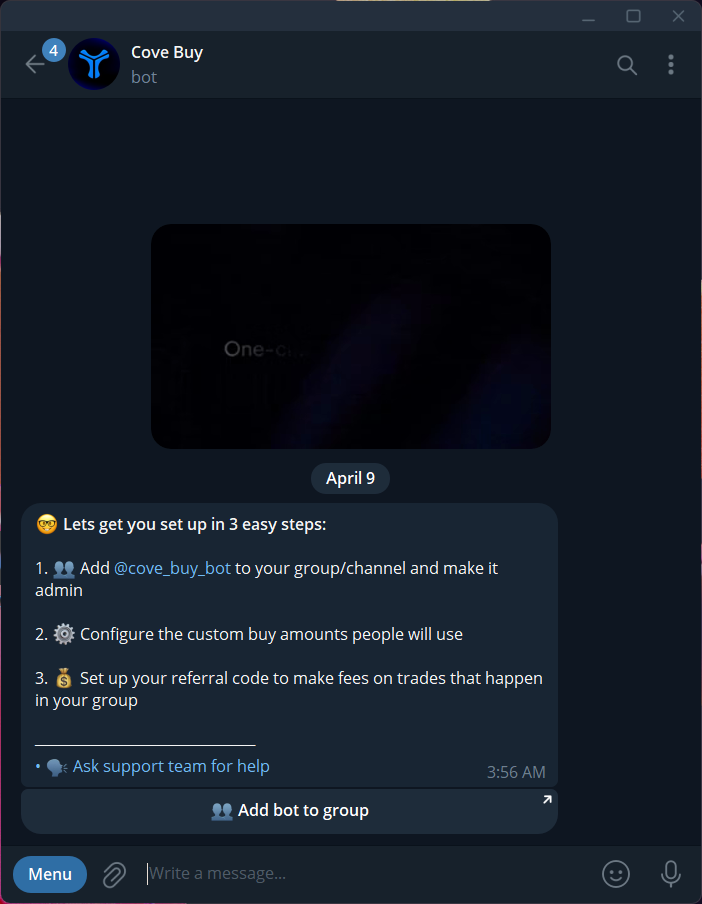
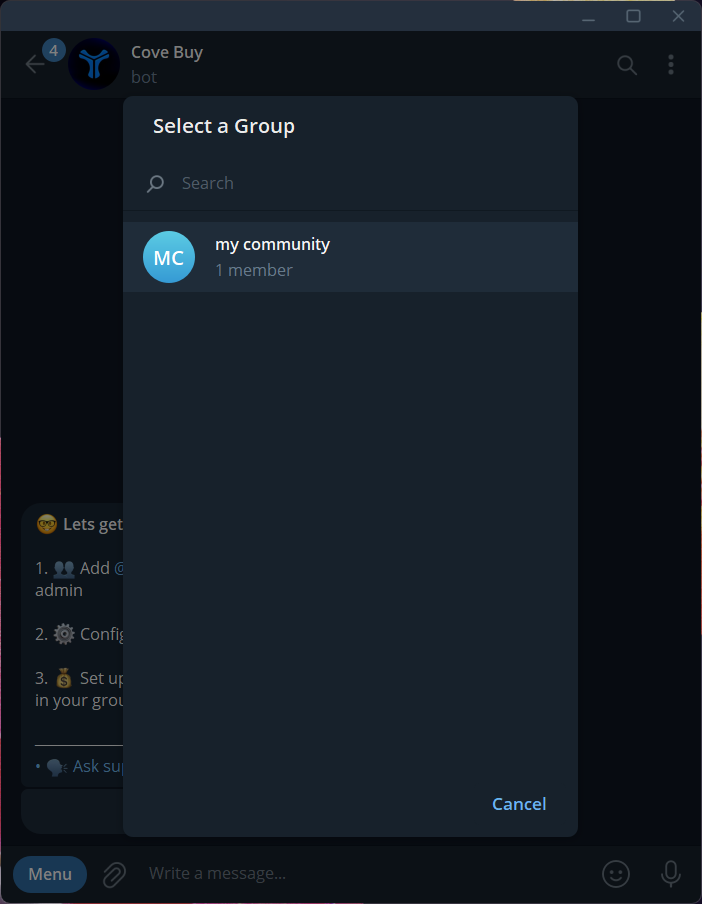
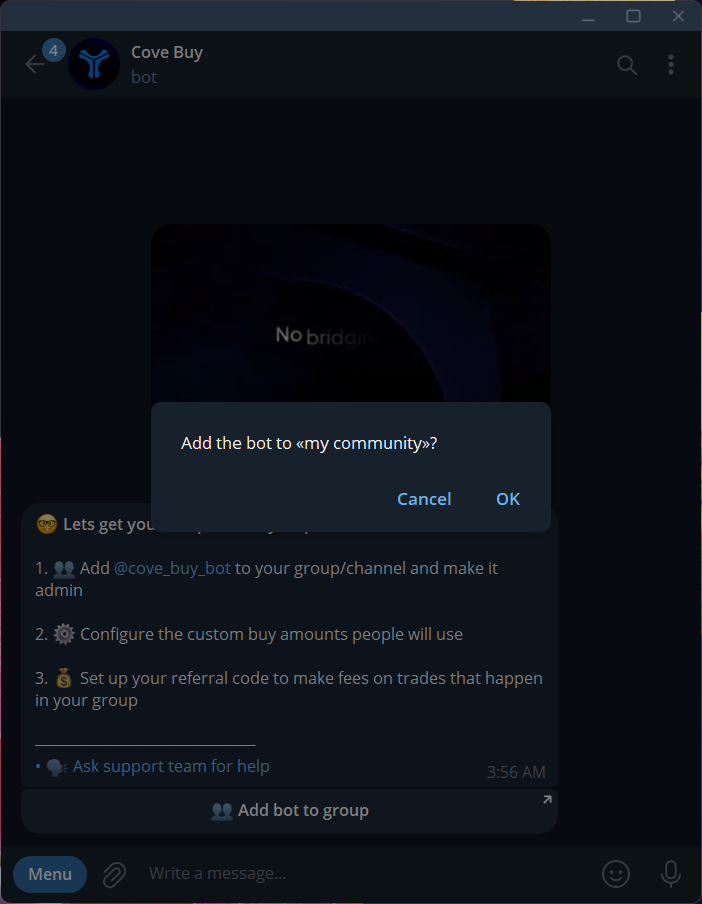
Add to your group/channel
- Select Group
- Confirm
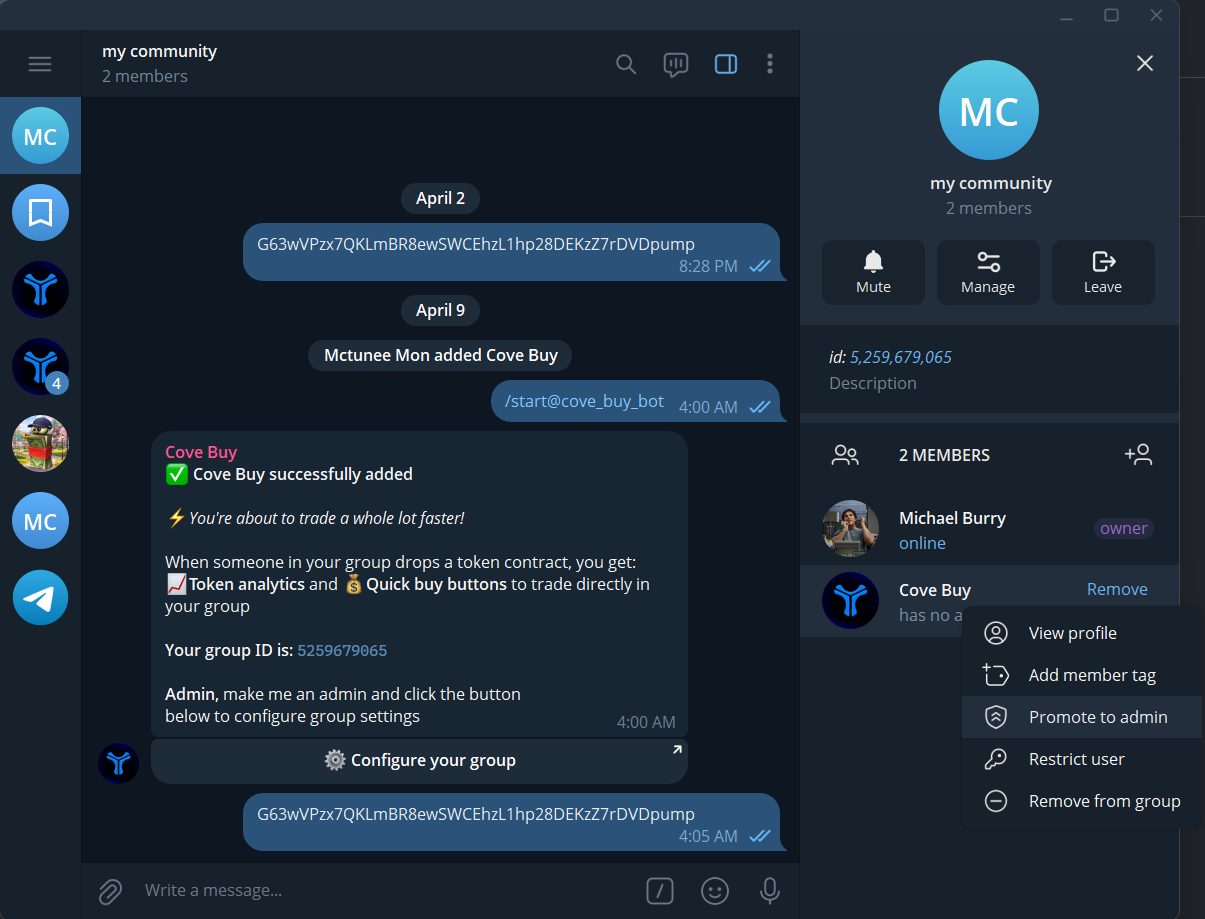
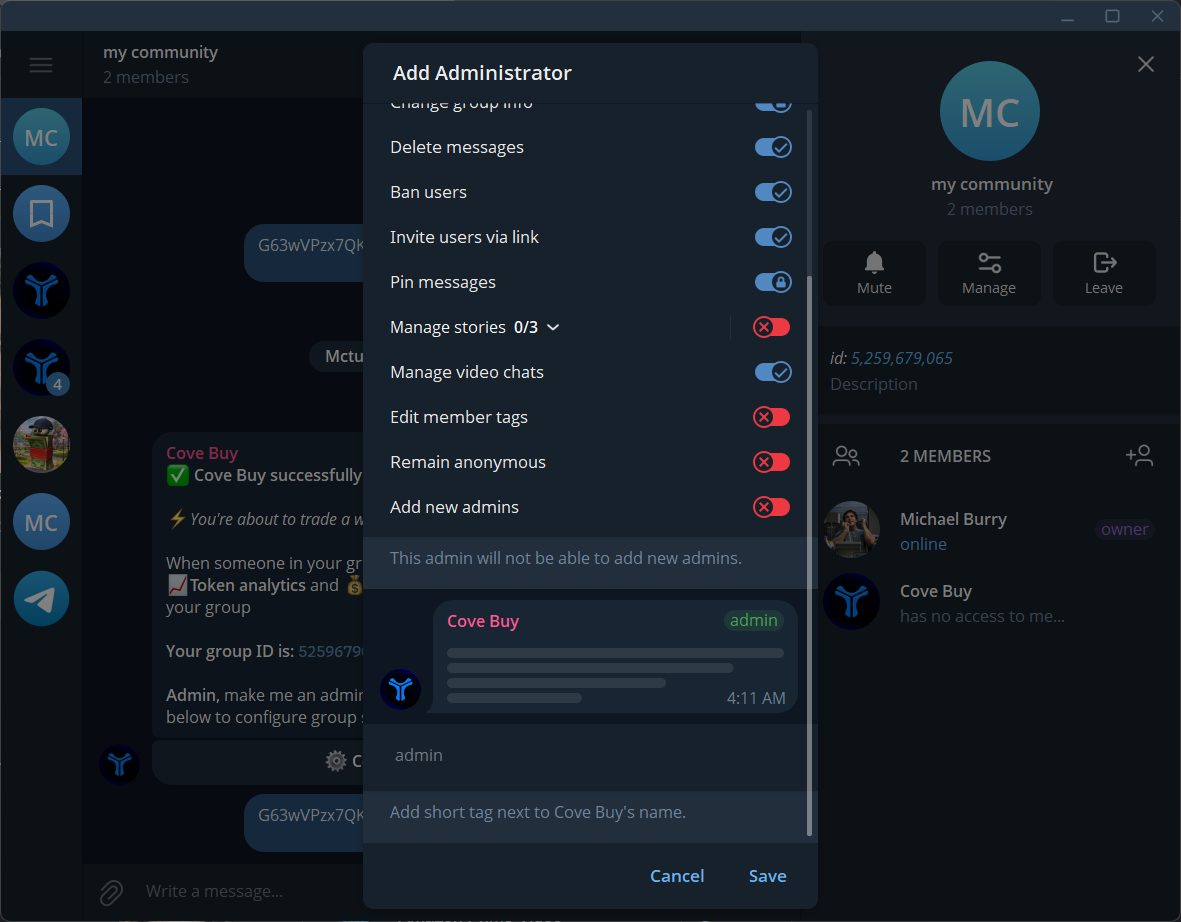
Give it an Admin role
- Promote to Admin
- Save Rights
Configure your Group
/group_settings to open the settings interface.- Settings
- Select Community
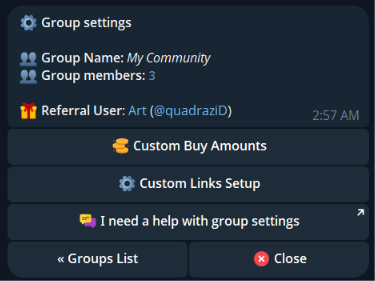
💰 Custom Buy Amounts
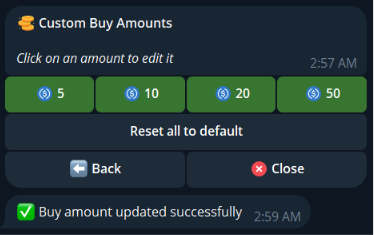
You can set custom Buy Amounts for your group that better suit your members. Everyone in this group will see the same.Open Group Settings
/group_settings command from Bot menu to launch your Group Settings. Here, click Custom Buy Amounts.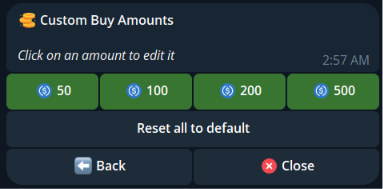
Select amount to change
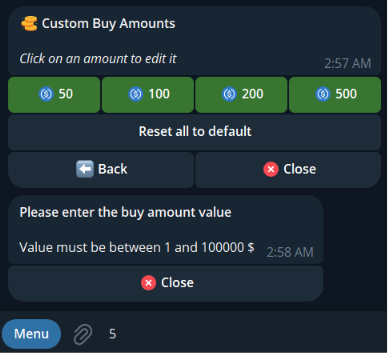
Apply the new amount
🔗 Custom Links Setup
We understand that people prefer different trading bots. With Cove Buy, you decide which bots you want to keep as quick buy links, and all referral fees from these links will go straight to your account. Cove Buy lets you set your own referral links for each scan in your community.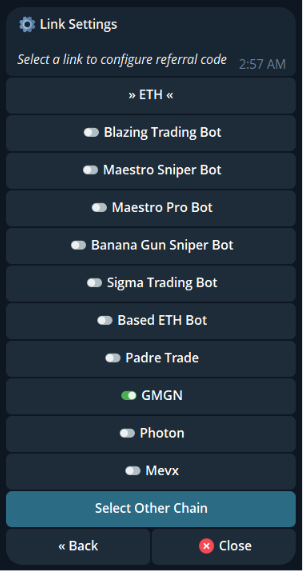
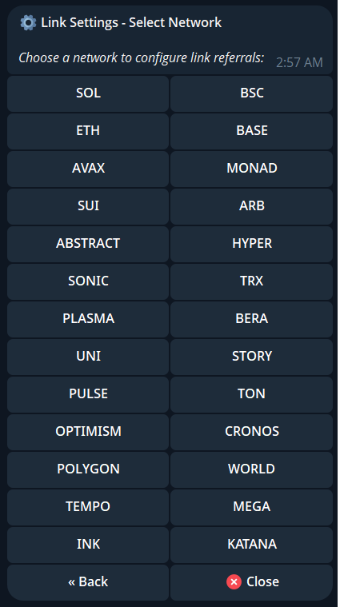
Select a chain to find a trading bot
Select trading bot
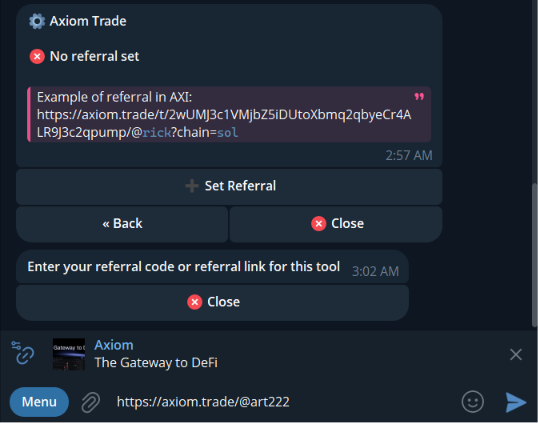
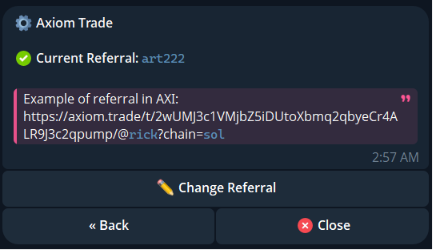
Set Referral & Get your Referral code
- Setup
- How It Looks
FAQ
I already have other scanners in my group — why do I need Cove Buy?
I already have other scanners in my group — why do I need Cove Buy?
Can I buy tokens using Cove Buy without a Cove account?
Can I buy tokens using Cove Buy without a Cove account?