

/track when available. Receiving either kind of notification does not itself place a trade.
Alerts are shared across your account, not limited to the active profile. Native and wrapped-native panels do not offer these alerts.
Create from a token panel
1
Open the token
Paste its address, then tap Add Alert beside Mcap, or My Alerts if you already have alerts.
2
Choose the target format
In Add alert, choose Market cap or % change.
3
Enter a target
Use a market cap such as 500k or 1.2m, or a change such as +50% or -20%. The target must differ from the current market cap.
4
Add optional steps and expiry
Add step creates up to four alerts at once. Remove unwanted steps with Delete Alert. Choose an expiry such as 30m, 2h, or 7d.
5
Create and check
Tap Create alert or Create N alerts. Look for the success message, then send
/alerts.Create one alert with a reply
Reply to a fresh token panel: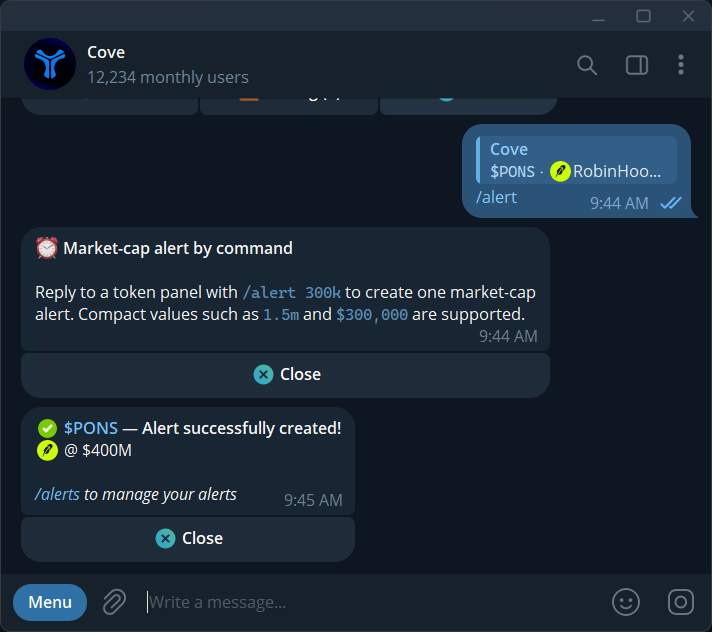
An alert created with a reply command and its confirmation.
Manage and cancel
- Send
/alerts. - Choose a token; the list shows ten tokens per page.
- Select an alert to inspect its trigger and market cap when set.
- Use Cancel alert, Cancel all alerts for the token, or Clear all alerts for the whole account.
- Read and confirm the cancellation scope.
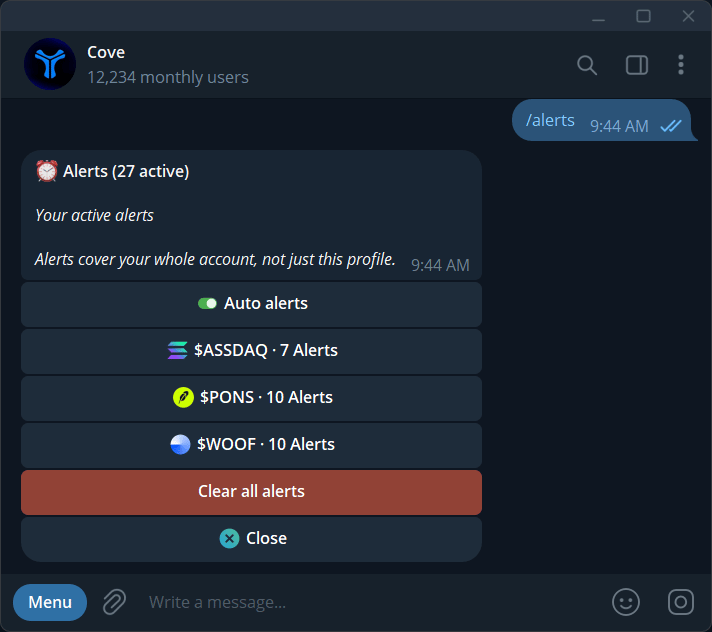
Active alerts grouped by token, with Auto alerts and Clear all alerts controls.
Read the notification
The message reports the token, direction, change, and target market cap. It can arrive after the market has moved further; the reported trigger level is not an executable quote. Checks are typically about 30 seconds apart. Pushover can mirror alerts to your phone where available. Opening an alert’s ticker can take you to a profile holding the token or offer a profile choice. If a reply command reports it was already received, check/alerts before resending.
For automatic targets after purchases, use Auto alerts.