

/start to return home or /help to see commands.
Main menu
Back returns to the previous panel. Close dismisses a message; it does not cancel a trade or order. Telegram may not allow older messages to be deleted.
Token panel
Paste an address or open a ticker in Positions. The panel contains buy/sell actions, slippage, charts, alerts, Limit, and Strategy. On the sell side, Limit has Limit, DCA (Price ladder), Dev Sell, and Trailing SL. Strategy has Counter Strategy and DCA Time Interval. On the buy side, Limit has Limit and DCA; Strategy opens DCA Time Interval. Manage Position opens a Mini App when enabled.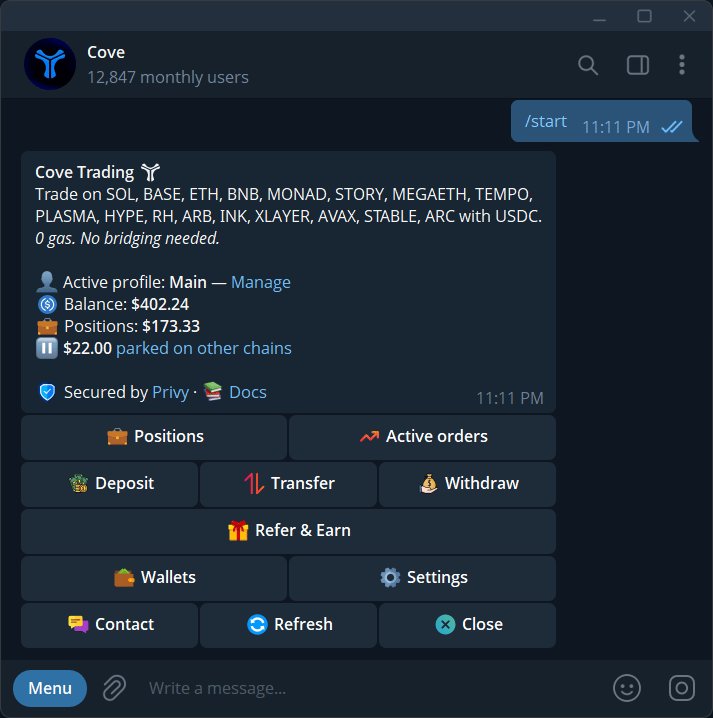
Open Active orders from the main menu.
Profiles versus wallet selection
The Active profile button changes the wallets and settings you are using. The wallet picker selects which wallets inside that profile trade together. If you switch profiles, reopen old trading or transfer panels. Their controls may belong to the previous profile.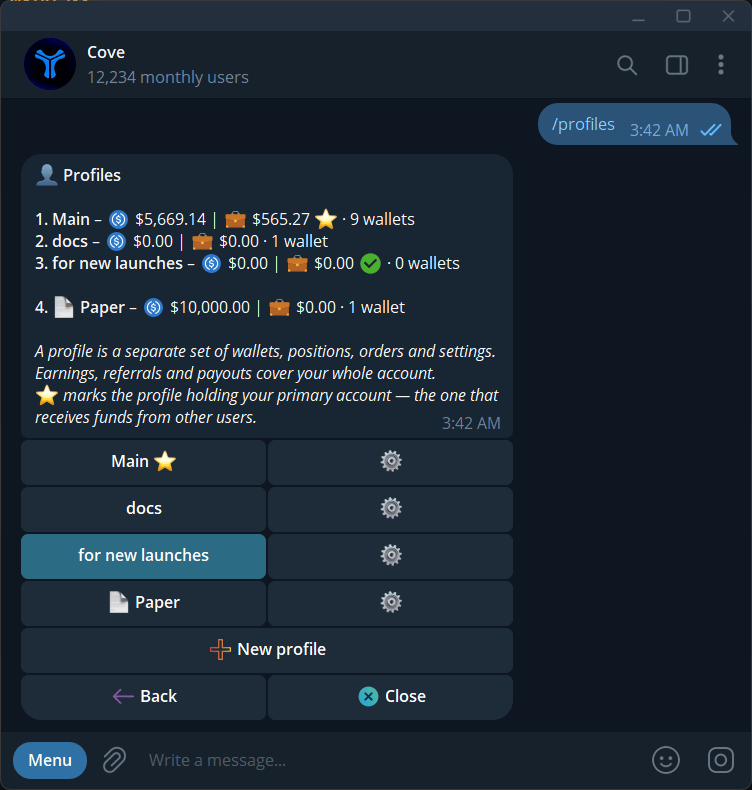
The Profiles menu shows balances, wallet counts, and the active profile.
Mini Apps, chains, and shortcuts
Mini Apps provide visual positions, history, funding, and wallet management. For ordinary token trading, the token determines the chain. If an address matches several networks, Cove asks which one you mean. For an Arc token, choose Arc and check the chain shown on the panel. See Supported chains for the trading-network list. Use Commands for direct shortcuts, Settings for layout changes, and/bots for the primary and backup bot handles. Telegram’s theme controls the bot appearance.