

Set up 2FA
- Tap Set up 2FA and scan the QR code with an authenticator app. If scanning is unavailable, use Can’t scan? to copy the setup key.
- Enter the 6-digit code from that app and tap Turn on 2FA.
- Check that the Security page says On. Keep access to your authenticator; losing it can prevent key export, sends, wallet imports, and turning 2FA off.
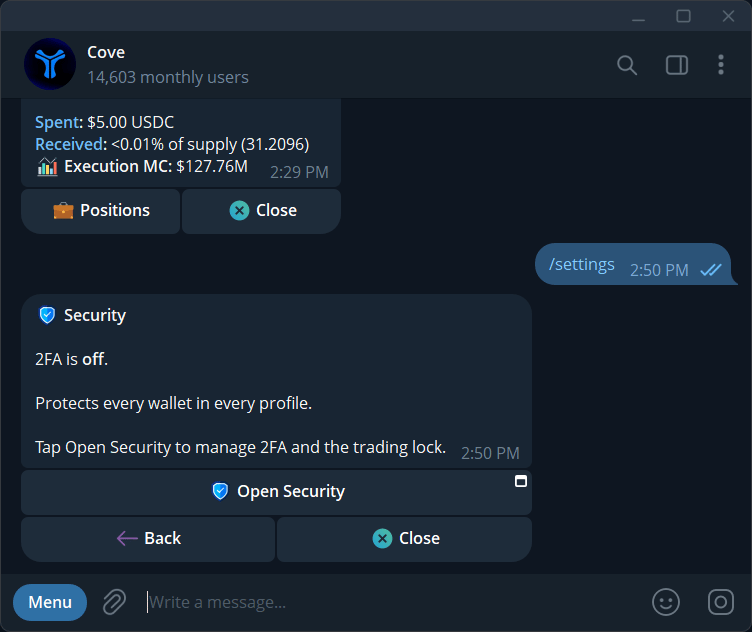
Telegram Settings → Security showing 2FA and trading status, without codes.
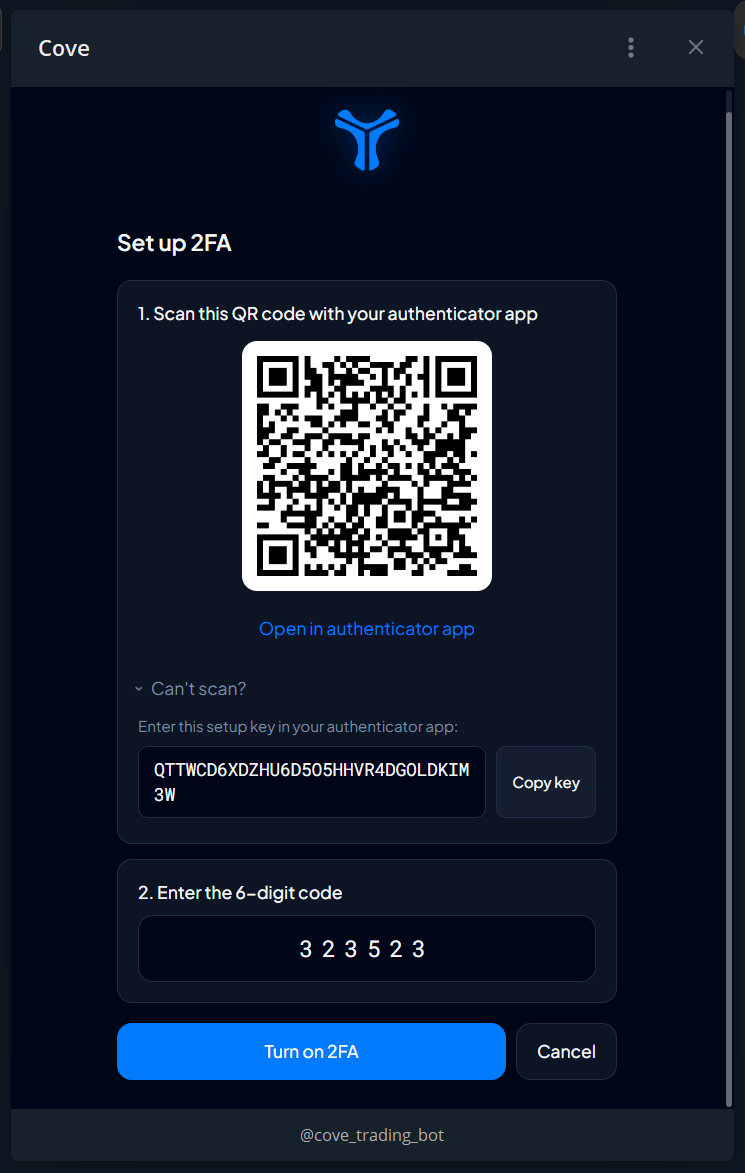
Example 2FA setup screen; the QR, setup key, and code shown are no longer valid.
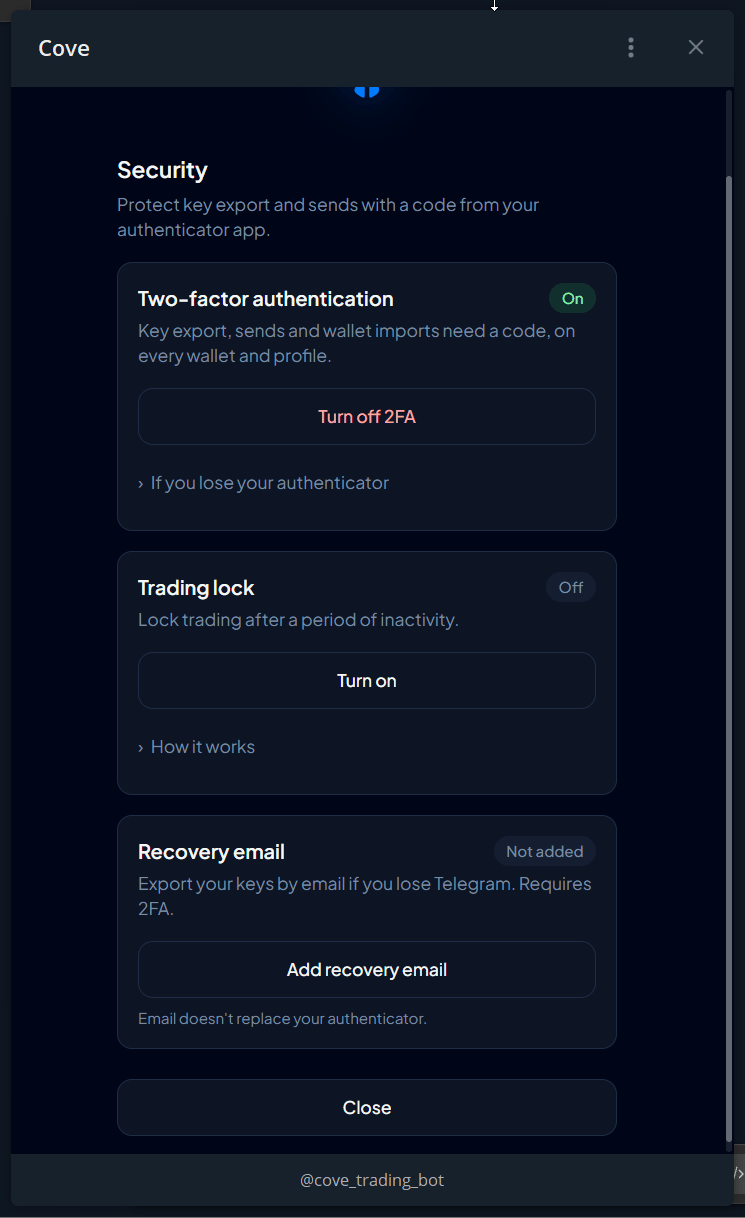
Cove Wallets Security overview after setup, with no code visible.
Optional trading lock
Trading lock is a separate option and starts off. Turn it on in Cove Wallets → Security → Trading lock and choose how long Cove may stay inactive before locking. The available presets are 1, 4, 8, 12, or 24 hours, 3 days, or 7 days. The starting selection is 4 hours. Using the bot or trading in the app or extension restarts an active timer. Automated orders and agent requests do not keep it unlocked. When locked, Cove blocks new trades and changes to limit or DCA orders; already placed orders continue running. Viewing balances and navigating still work. A code used for a send does not unlock trading. To unlock, tap Unlock trading in /settings → Security or on a blocked-trade message, then enter a fresh 6-digit authenticator code in the chat. You can also unlock in Cove Wallets → Security. A blocked trade is not retried for you: review it and submit it again. /lock locks trading immediately when the option is enabled.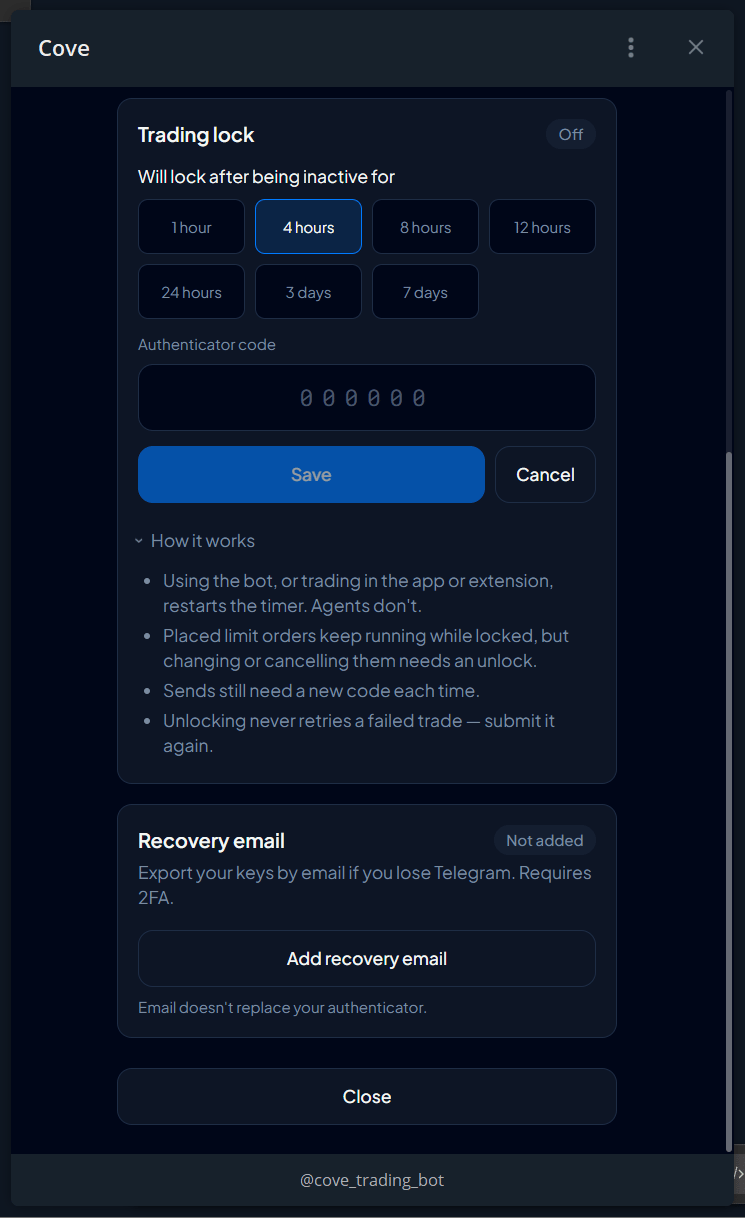
Trading lock controls and duration choices.
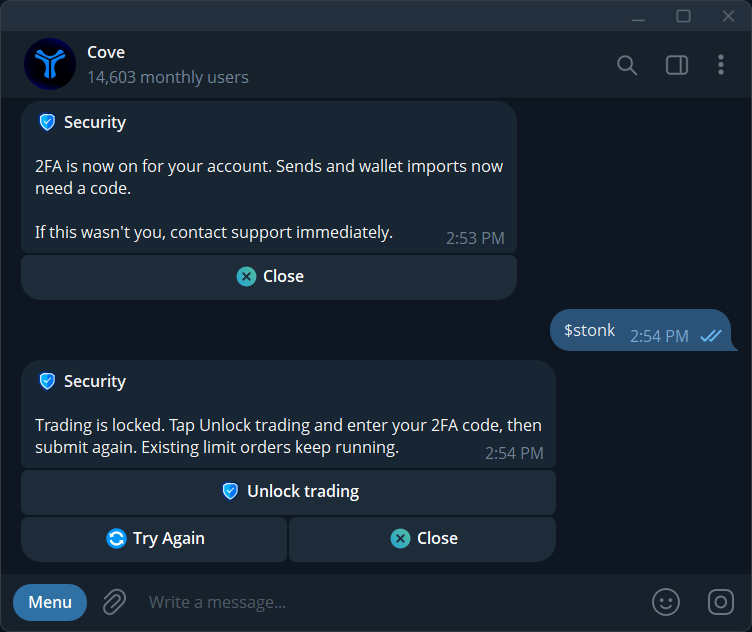
Telegram locked status and Unlock trading button, without a code.
Add a recovery email before you lose Telegram access
Once 2FA shows On, open Cove Wallets → Security → Recovery email and tap Add recovery email. Complete the email-linking flow, then check that Security shows Added and the correct address. You can use Copy recovery link there, or open the same public link below later. The link contains no account-specific code; access depends on signing in with the email already linked to your Cove wallet account. A recovery email gives you another way to reach wallet key export if you lose Telegram access. It does not replace your authenticator, restore your Telegram account, or turn off 2FA. Add it while you can still open Cove Wallets from Telegram.Export keys after losing Telegram access
Open wallet key recovery ↗- Open the link in a regular browser and choose Sign in with recovery email. Use the address you previously added in Cove Wallets → Security.
- Find the wallet under Active. If you previously deleted it from Cove, check Deleted. The recovery page can show wallets across your profiles, including deleted wallets that still belong to your account.
- Check the wallet address and chain, then choose Export Private Key for its EVM or Solana wallet. Complete the authenticator check and Privy’s secure export flow when prompted. Keep the key somewhere only you can access.
- Choose Sign out when finished. Leaving or reloading the page also signs you out; sign in again to reopen it.