

/track to open Trader Tracker if it is available on your account. Follow a trader on Fomo or Pump.fun to receive Telegram alerts about their buys, sells, and theses. An alert reports the trader’s activity; receiving one does not trade for you.
/track is temporarily unavailable, your saved traders remain in your list. Alerts are not delivered while the feature is off.Add and find a trader
- Send
/trackand tap Add new Trader. - Send an EVM or Solana wallet address, an
@handle, or a Fomo or Pump.fun profile link. A handle searches both apps; a profile link searches its own app. - If the handle matches traders on both apps, choose Fomo, Pump.fun, or Both. Both creates two subscriptions with the same initial settings. They appear as separate entries when you return to the list.
- Cove opens Manage when tracking starts. Check the source and wallets to confirm that you found the right trader.
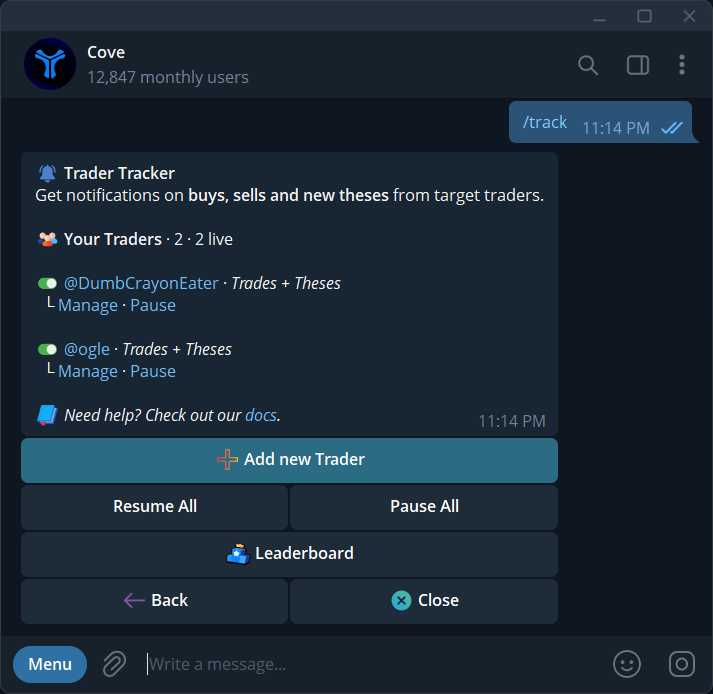
The /track list shows your traders, Manage links, pause controls, and Leaderboard.
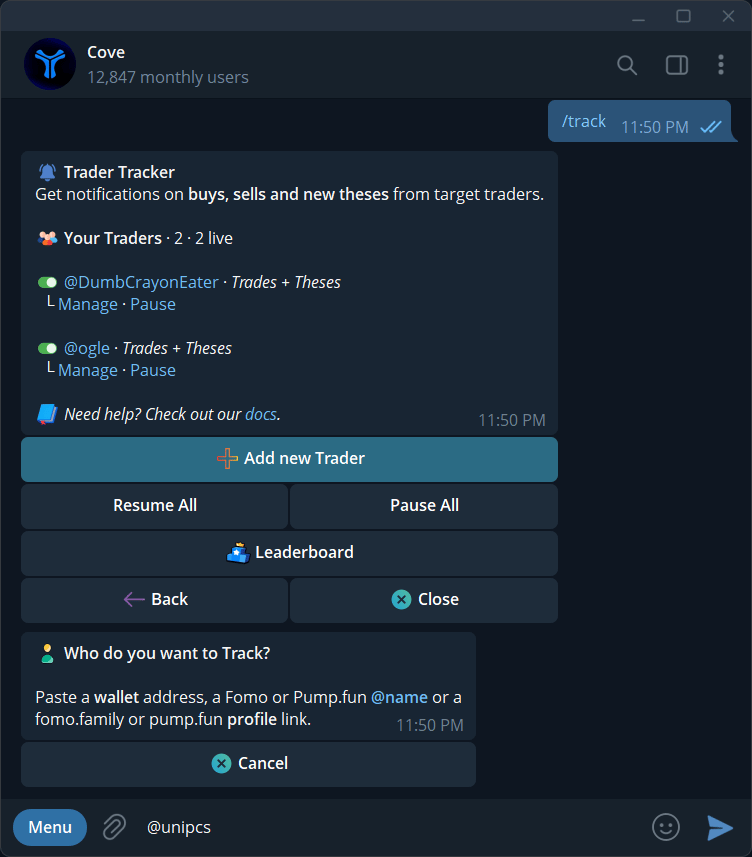
Add new Trader asks for a wallet, handle, or supported profile link.
Manage one trader
Tap Manage beside the trader in/track. A new subscription starts with Buys and Sells on, All theses, Only on my holdings off, and no minimum or token filters. Changing a control saves it immediately. Existing subscriptions keep their own saved settings.
The panel shows the trader’s source app, public wallets, current status, alert types, Min buy, and Token Filters. Share to Friend shares a link to this trader; it does not share your private settings.
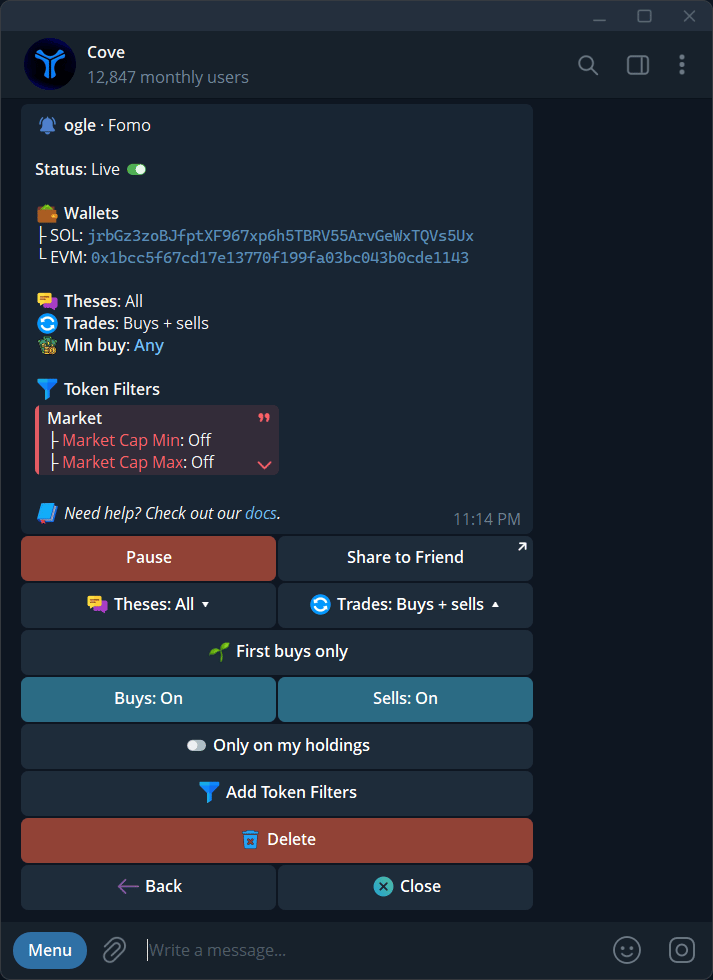
Manage shows the trader's status, wallets, event choices, and filters.
Choose thesis alerts
Open Theses and select one option: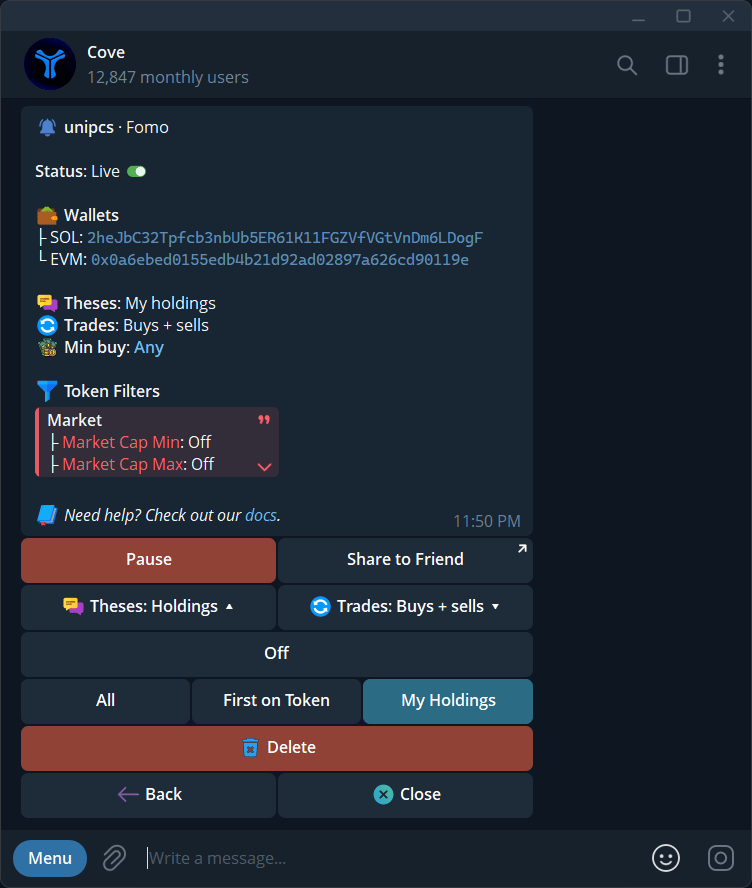
Theses offers Off, All, First on Token, and My Holdings.
Choose trade alerts
Open Trades to set these controls separately: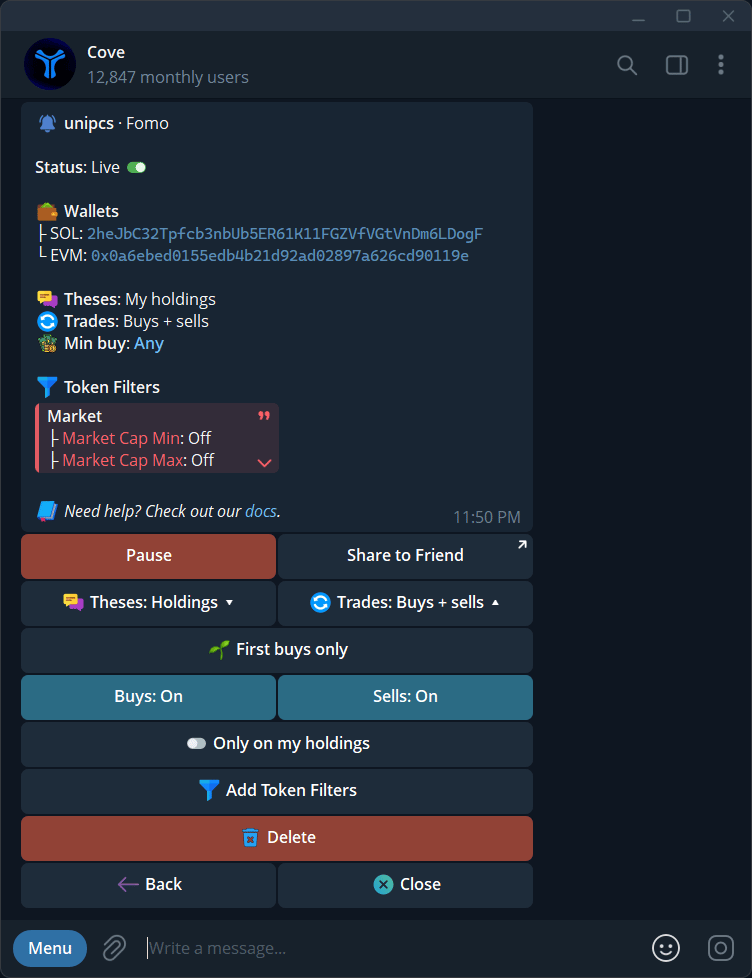
First buys only, Buys, Sells, and Only on my holdings are separate trade controls.
Narrow alerts with Token Filters
From Trades, tap Add Token Filters. A limit marked Off does not filter anything. These fields use the token’s market data; Min Buy uses the trader’s buy amount.50k, $1.5m, or 1,000; holder counts accept a number such as 500; Top 10 takes a percentage such as 30%; token age takes a duration such as 30m, 6h, 3d, or 2w. Send off, none, any, clear, or 0 to clear one field. An invalid value leaves the prompt open so you can correct it. Cancel leaves that value unchanged.
Each valid change saves immediately. Save & Go back returns to the Trades menu; it is not a separate commit step. Reset filters clears all nine numeric fields together while retaining your thesis, trade, and holdings choices.
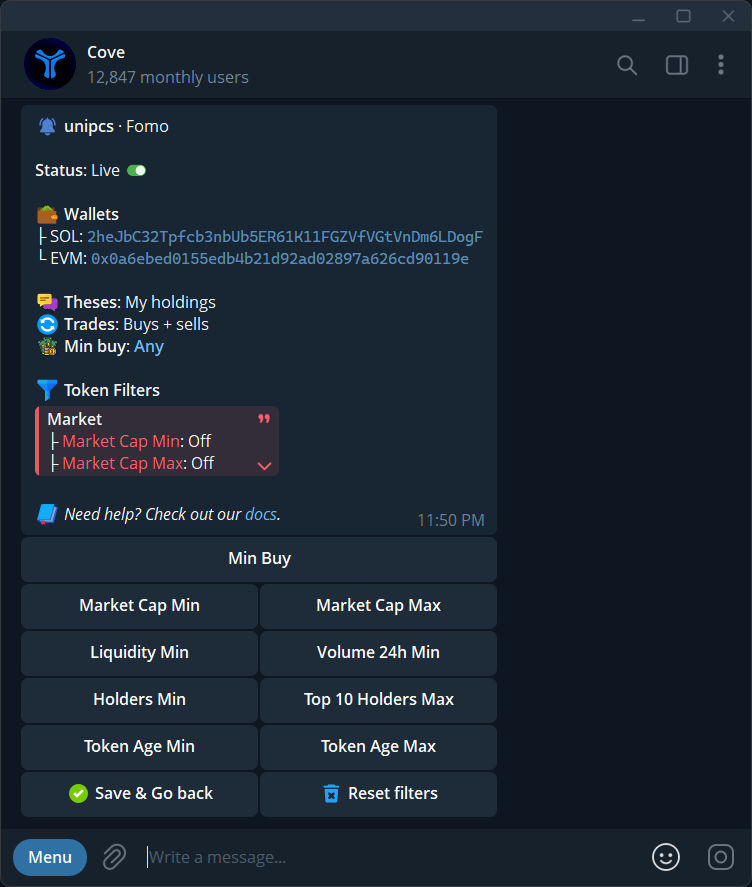
The filter menu has nine fields, Save & Go back, and Reset filters.
Discover traders with Leaderboard
Open/track → Leaderboard. Switch between Fomo and Pump.fun, and between 24h, 7d, and 30d. The list shows ten traders per page. The signed PnL next to a trader’s name belongs to the selected period; it is not a promise of future performance.
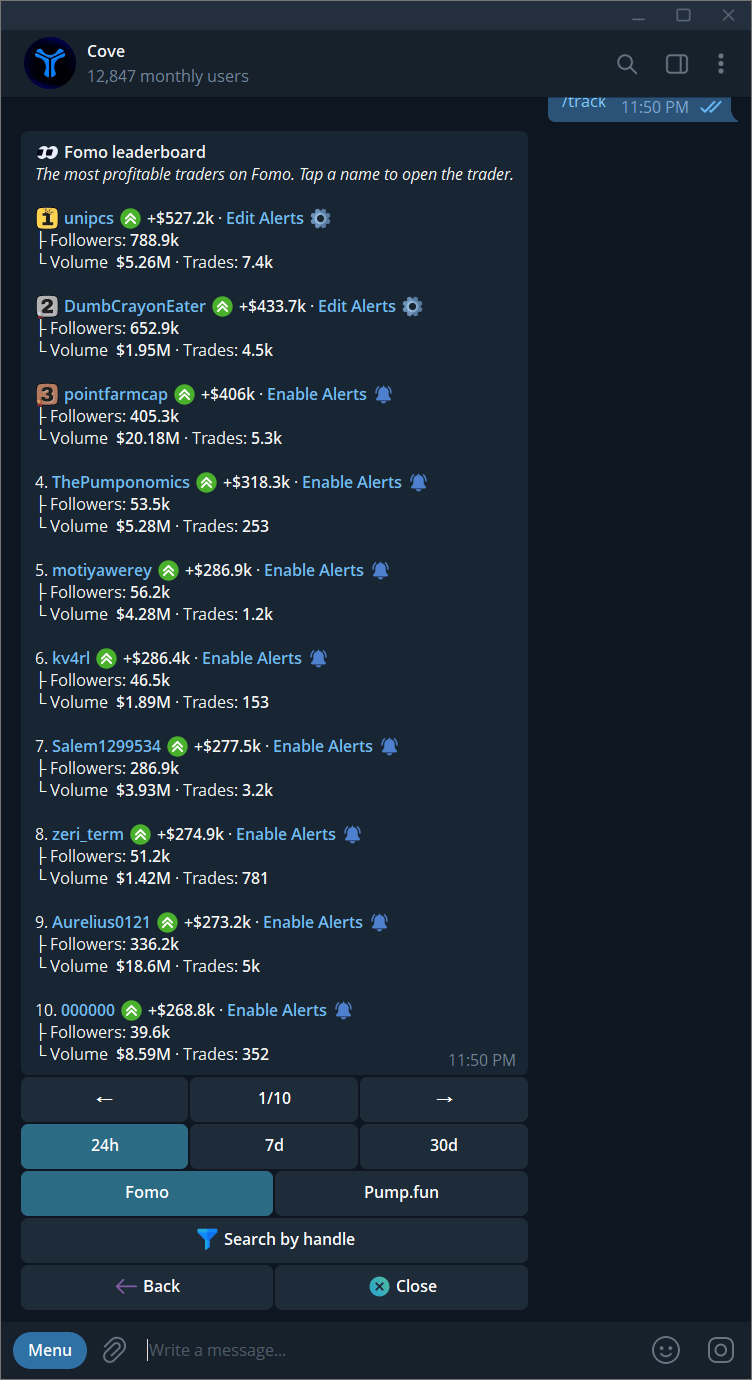
Fomo Leaderboard at 24h: PnL, followers, volume, trades, and alert links.
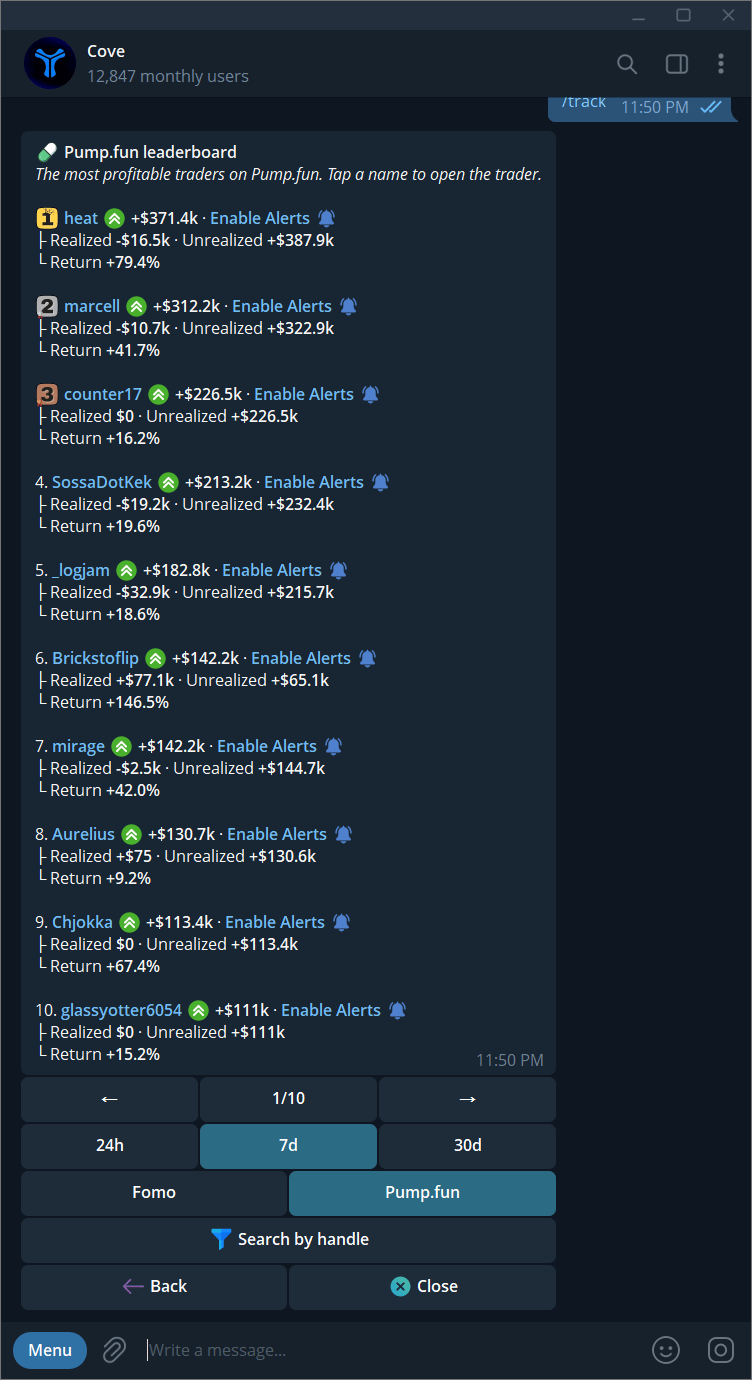
Pump.fun Leaderboard at 7d: PnL, realized and unrealized components, and return.
Act on an alert
An alert can show what the trader did, their token and position, the token’s current market cap, and the market cap at buy, at sell, or at post. Those event values describe the trader’s activity; they are not your execution price. The token symbol opens Cove’s token panel. If trading actions are available, the alert shows the wallets it will use. Buy selects a market buy; Limit selects a pending limit buy. Switching modes changes the amount row and explanation; switching modes does not place an order. Tapping a dollar amount or sending a custom amount can submit a buy or limit order. Action buttons expire two hours after the alert is sent.What the alert’s Limit means
For a buy alert, Limit uses the trader’s actual fill price: the USD they spent divided by the number of tokens they received. Cove translates that price into a market-cap target using its live price and market-cap data. The pending buy then watches for the token’s market cap to reach that target or lower. For example, if the converted entry target shown in the alert is $1m MC, the order waits for $1m or below; it does not buy just because you selected Limit. The order expires after 24 hours if it has not filled. The alert can also show a separate “MC … at buy” figure supplied with the trader’s event. The actual limit target is the “fires at MC … or lower” number shown after selecting Limit and in its receipt; those two market-cap figures can differ. If the market is already at or below the limit when you place it, the order can trigger on its next check. A trigger starts an execution attempt; available liquidity, slippage, and trading checks still determine whether it fills and at what effective price. Check/orders for the result.
On a sell alert, Limit instead uses the trader’s sell fill price and still creates a buy limit at that converted market cap or lower. On a thesis alert, it uses the market cap when the thesis was posted. If Cove lacks a usable price or market-cap basis, it hides Limit while Buy may remain available.
Where the dollar buttons come from
$x button at the end of Buy and Limit rows opens a prompt for your own USD amount. Check its minimum and wallet mode before replying. Min Buy in Manage is a filter on the trader’s purchases; it does not set your order size.
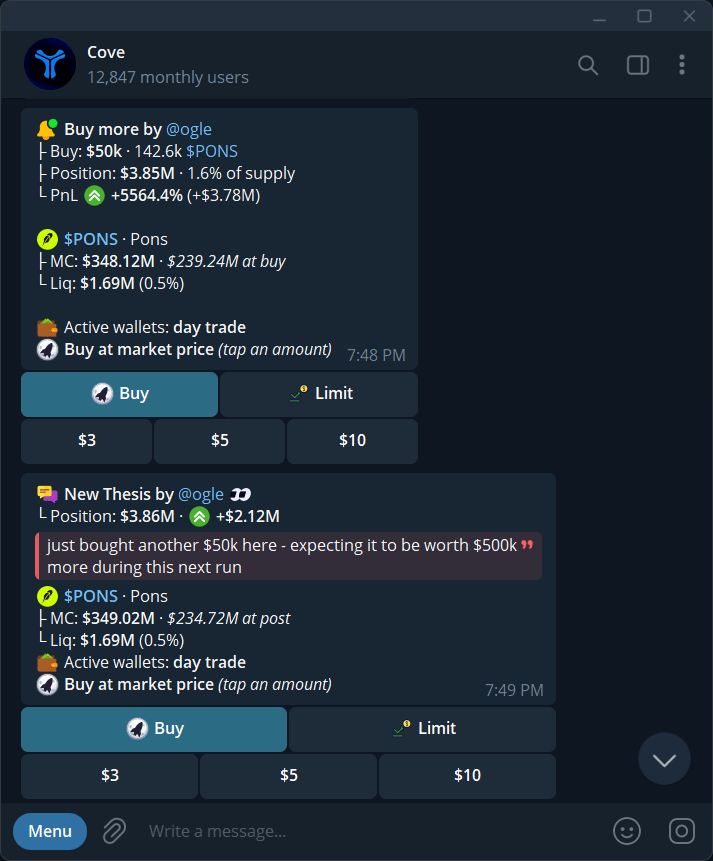
Buy and thesis alerts show Buy/Limit modes and dollar amounts from your presets.
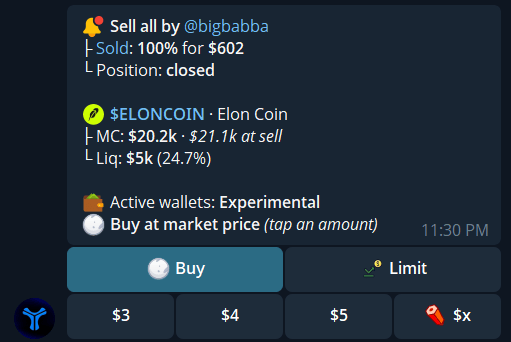
The $x button opens a custom USD amount prompt; this image shows the button before it is tapped.
Alerts about the trader’s sales
A trader’s sale can still offer Buy and Limit. If you hold that token in an eligible real wallet, the alert can also offer Sell; it starts selected when available. Its buttons use the first three of your profile’s sell-percentage presets, and each percentage applies to each included wallet’s own position. Depending on your sell confirmation setting, tapping a percentage either opens Confirm / Cancel or starts a sale. The example below has no Sell control because no eligible holding was available for that alert.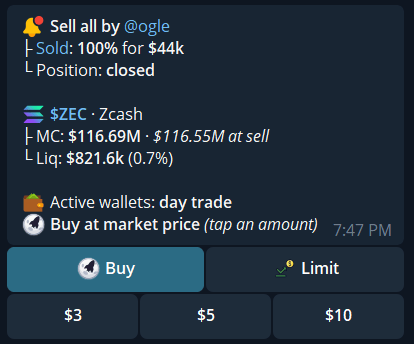
A trader's sell alert may show Buy and Limit only when you have no eligible holding to sell.
Pause or remove a trader
Use Pause in Manage to stop alerts while keeping the trader and every setting. Use Delete only when you want to remove the subscription and its settings; Cove asks you to confirm. A shared trader link does not give someone access to your subscription controls.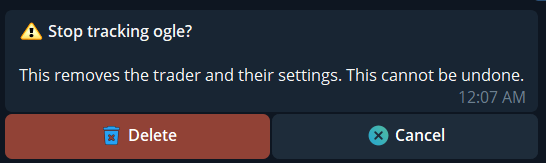
Delete requires confirmation and removes this trader's saved settings.