

/track, then open Wallets. These tracked wallets are separate from the wallets you own in /wallets and from your trading profiles.
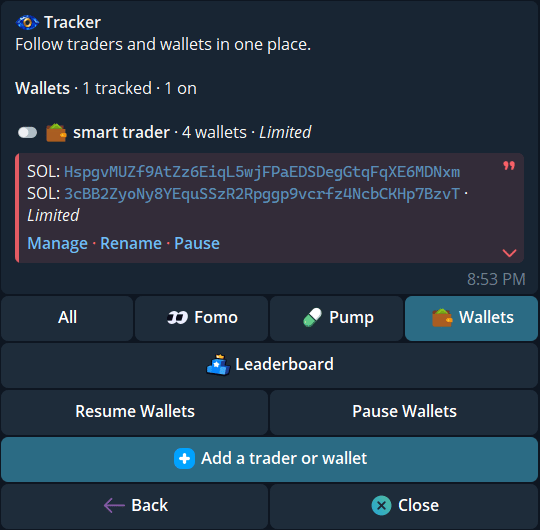
The Wallets tab shows a tracked group, its status, and the shared Add a trader or wallet action.
Add one wallet or a batch
- Tap Add a trader or wallet. Send a public Solana or EVM address to track a wallet. An
@handleor supported profile link searches for a Fomo or Pump.fun trader instead. Never send a private key or recovery phrase. - For a batch, paste up to 10 addresses, one per line. The bot checks every line before showing the next step. An invalid, duplicate, already tracked, or over-limit address rejects the whole batch; no entries are saved from it.
- If you sent one address, give it a name of 1–24 characters. You can attach more wallets to that name later.
- If you sent several unnamed addresses, choose Track together for one name and shared alert settings, or Track separately for one name and alert setup per wallet. Together asks for a 1–24 character name. Separately asks for a 1–20 character base name and creates entries such as
Custom #1,Custom #2. - Review the new entries in Wallets → Manage. A new wallet may show Checking until monitoring is ready.
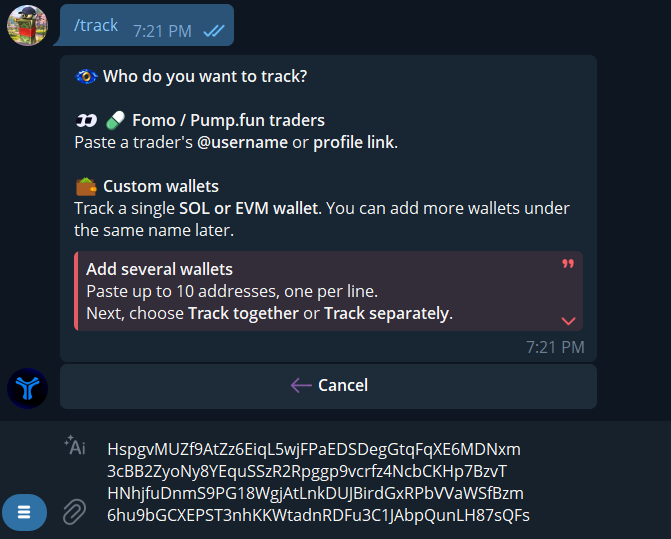
The common add prompt accepts one public address or several addresses, one per line.
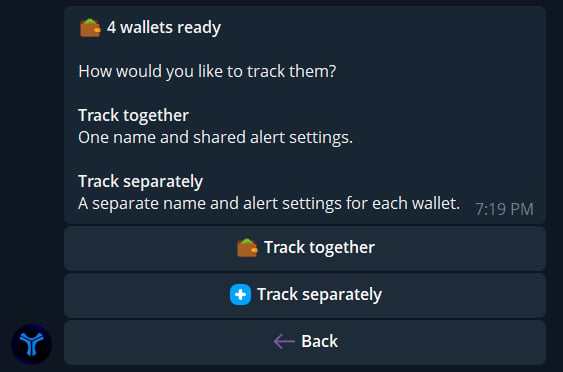
After four valid addresses, choose one shared group or a separate entry for each wallet. This choice does not start a trade.
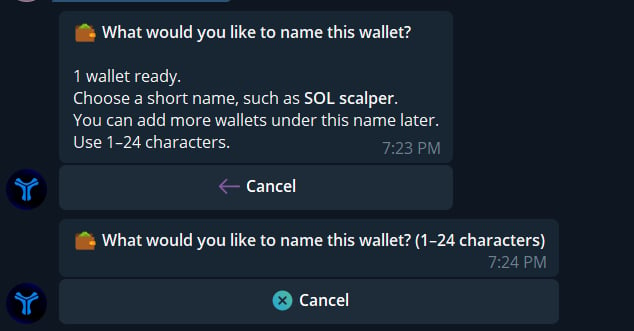
A single wallet asks for a short name. A batch tracked together asks for one group name in the same 1–24 character range.
address; name on every line; a comma works too. Identical names form one group. Mixing named and unnamed lines is refused. In the unified Tracker you can save up to 10 wallet names, 10 wallets per name, and 10 addresses per input. Names must be unique regardless of letter case.
Read the Wallets tab
The Wallets tab counts tracked wallets and shows how many are on. Addresses appear under their group name. Each group has Manage, Rename, and Pause or Resume. These actions affect alerts, not the assets in the public wallets you follow.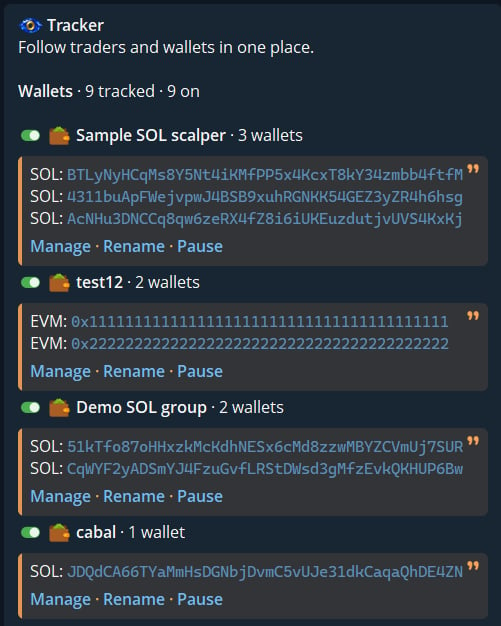
Several named groups in Wallets. Each group lists its public addresses and its own management controls.
Manage a group
Tap Manage under a group. The card shows Status, member count, trade-alert mode, Min buy, and active Token Filters. In the example, Wallets · 2/10 means two addresses occupy the group’s ten slots. Live means monitoring is active for the shown coverage; read any network-specific status before relying on an alert. Pause stops new alerts while keeping the name, members, and settings.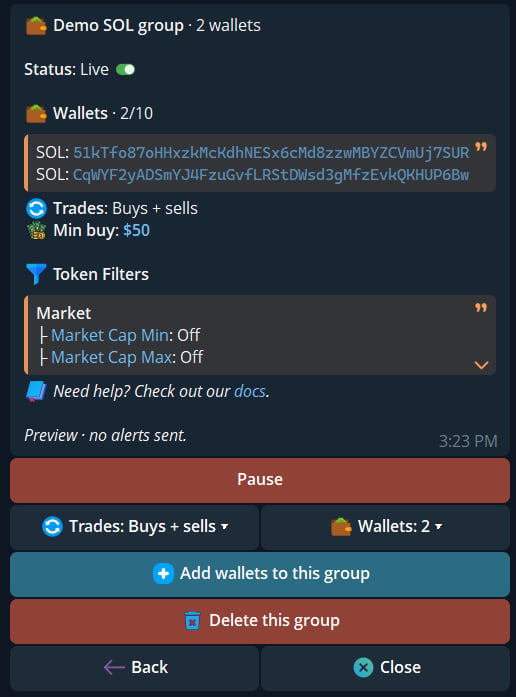
Manage for a two-wallet group, with Live status, shared alerts, filters, and add or delete controls.
Trade alerts and filters
Open Trades to choose Buys, Sells, First buys only, and Only on my holdings. Min buy filters purchases made by the tracked wallet; it does not set the size of your own Buy or Limit action. Open Add Token Filters for market-cap and other token bounds. These choices are shared by all wallets under the group name. Wallet groups do not have trader Theses.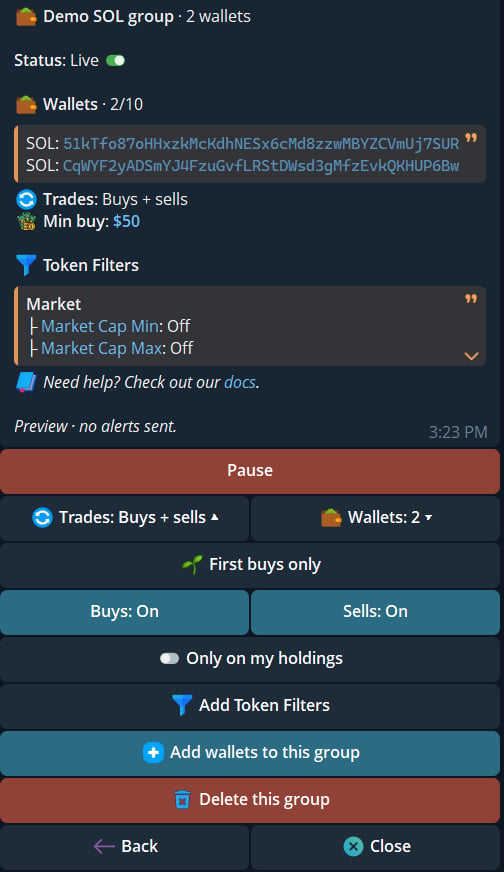
The expanded Trades menu shows buy and sell alerts, first buys, holdings, and token-filter controls.
Add or remove wallets
Tap Wallets: N inside Manage to expand the member list. Remove beside an address stops tracking that wallet while the other members and their group settings stay in place. Add wallets to this group accepts public addresses only, up to the group’s remaining slots; do not add names to this input. Delete this group removes its name, members, and alert settings. Removing the final wallet also deletes the group after a warning. Check the confirmation before removing either.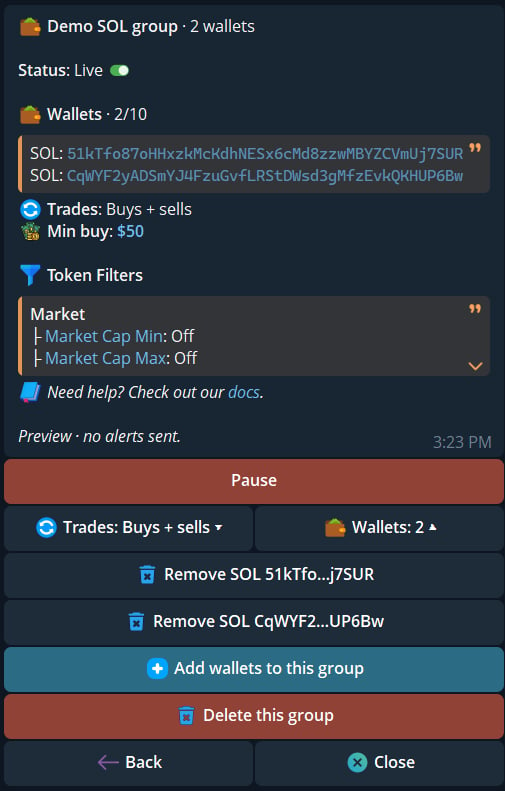
The expanded Wallets menu has a separate Remove action for each address, plus group-level Add and Delete actions.