

Choose the trigger and your sell size
In the Telegram token panel, open Limit → Selling → Dev Sell. The two percentages refer to different wallets:
For example, Dev sells 25% and Sell 50% means Cove waits for the creator’s net balance to fall by the threshold after a qualifying sale, then attempts to sell half of your position remaining at that point. The creator can reach the threshold across several sales. The percentage is measured from the creator’s balance at order placement, not the token’s total supply.
The form opens ready to place with Any and Sell 100%, and both rows show their editable presets. Those are starting values, not a recommendation. Review them, the selected wallets, token and expiry before tapping Place order. Cove attempts one order per selected wallet. If the creator wallet or a usable starting balance cannot be identified, the manual order is not placed and Cove gives a reason.
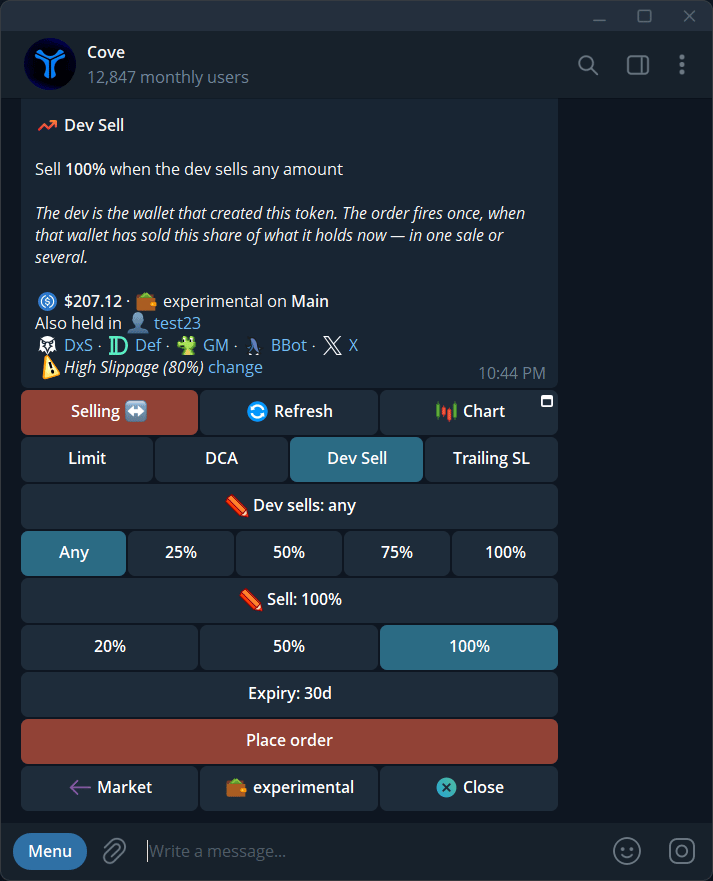
Dev Sell opens with Any and Sell 100%; both can be changed.
Check and manage the order
Open the token panel’s Active Orders → DS → View details, or find the pending DS entry in/orders. The detail screen shows whether it is armed, the trigger and your sell size, the creator wallet, expiry, and progress toward the creator’s balance-drop threshold. Refresh reads the latest progress; the open message does not update itself. You can cancel or edit Trigger, Sell, and Expiry while the order runs. Token panel opens a new panel for that token; it does not change the order. The creator address and starting balance were fixed at placement; editing the percentages does not change that baseline. If placement status is uncertain, check /orders before trying again.
If the order sells, its result may remain on the token panel until dismissed. Read the sale receipt and remaining position. Close dismisses the current message; it does not cancel a running order.
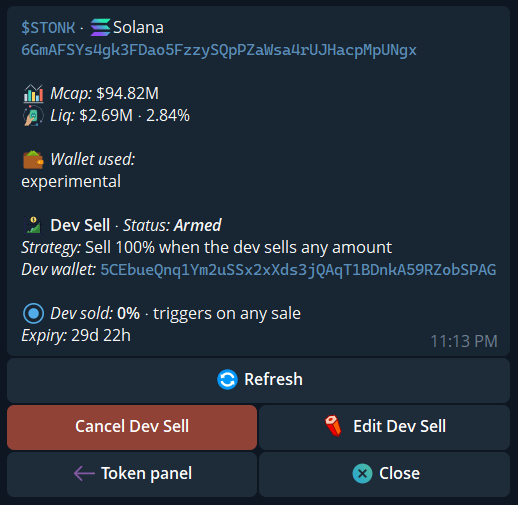
An armed Dev Sell shows its trigger, progress, and controls.
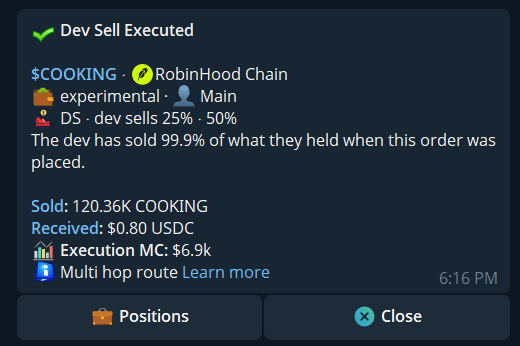
Example Dev Sell execution summary.
Auto Dev Sell for future buys
Open Settings → Trade panel settings → Auto orders → Auto Dev Sell. Market buys and Limit & DCA have separate settings; a filled DCA rung or breakout buy belongs to the latter group. Auto Dev Sell starts Off. When enabled, it tries to place a Dev Sell order after a future eligible buy fills. Turning it on does not add orders to holdings you already have. If the token has no usable creator-wallet information or balance, an automatic order may not be created. After a buy, open/orders and verify the actual DS order. An enabled setting alone does not prove protection is active.
For other exit conditions, see Take-profit and stop-loss, Trailing stop, and Manage orders.